Create and publish a service offer
Set up a B2C service with a rate, availability and either booking or a quote request.
Before you begin
- A B2C store and edit access.
- The scope of work, rate or estimation method, service area and availability.
- Who it is for
- companie
- Where to find it
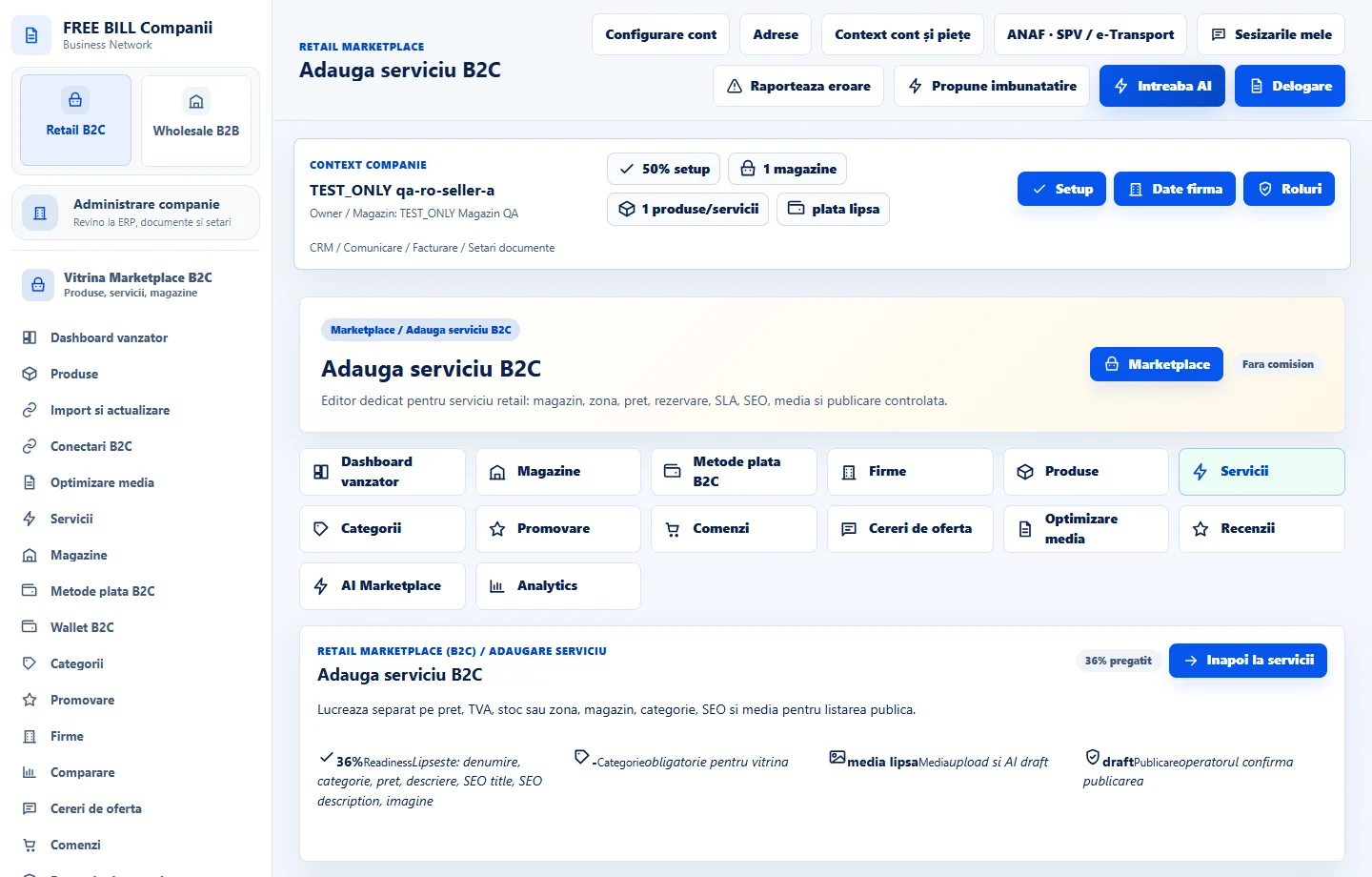
- Adauga serviciu B2C
Step by step
Choose the store and open the editor
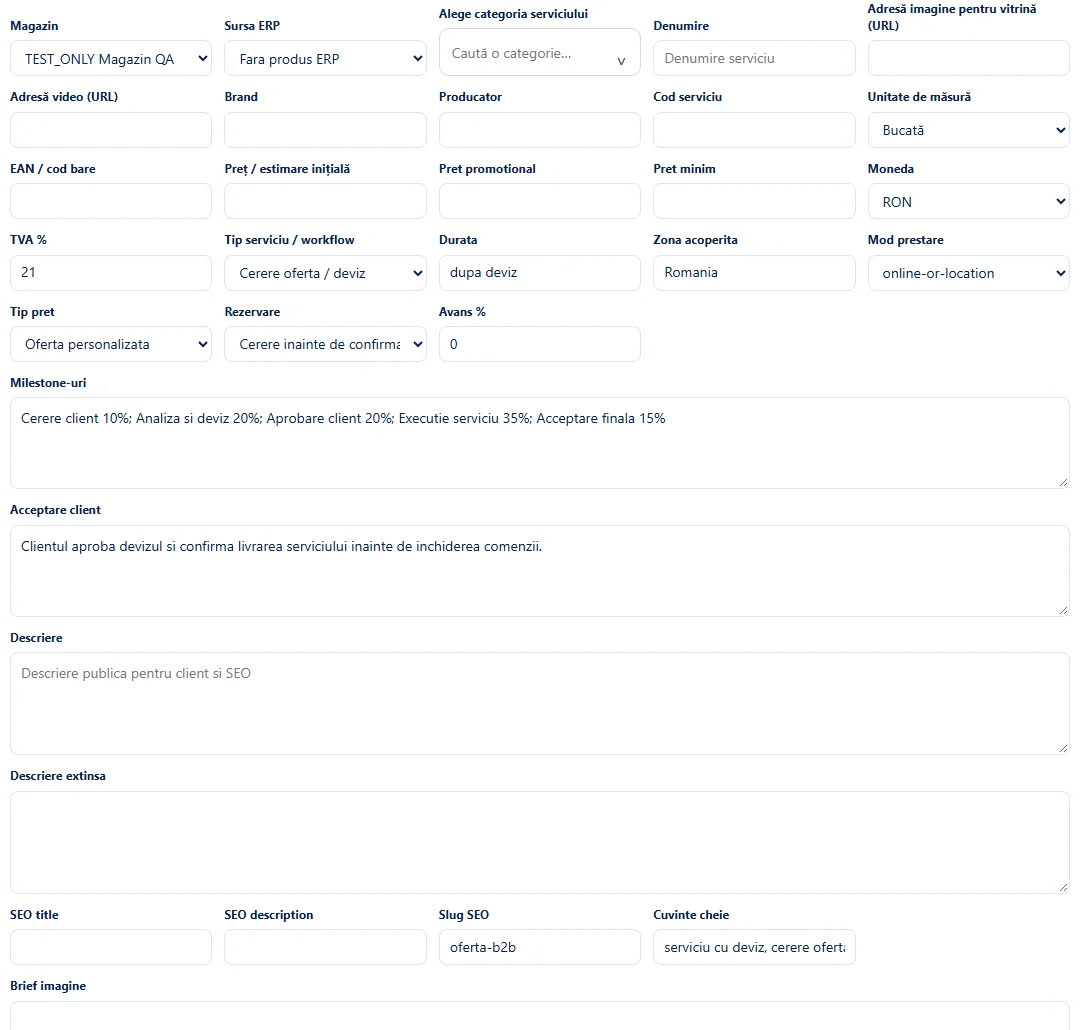
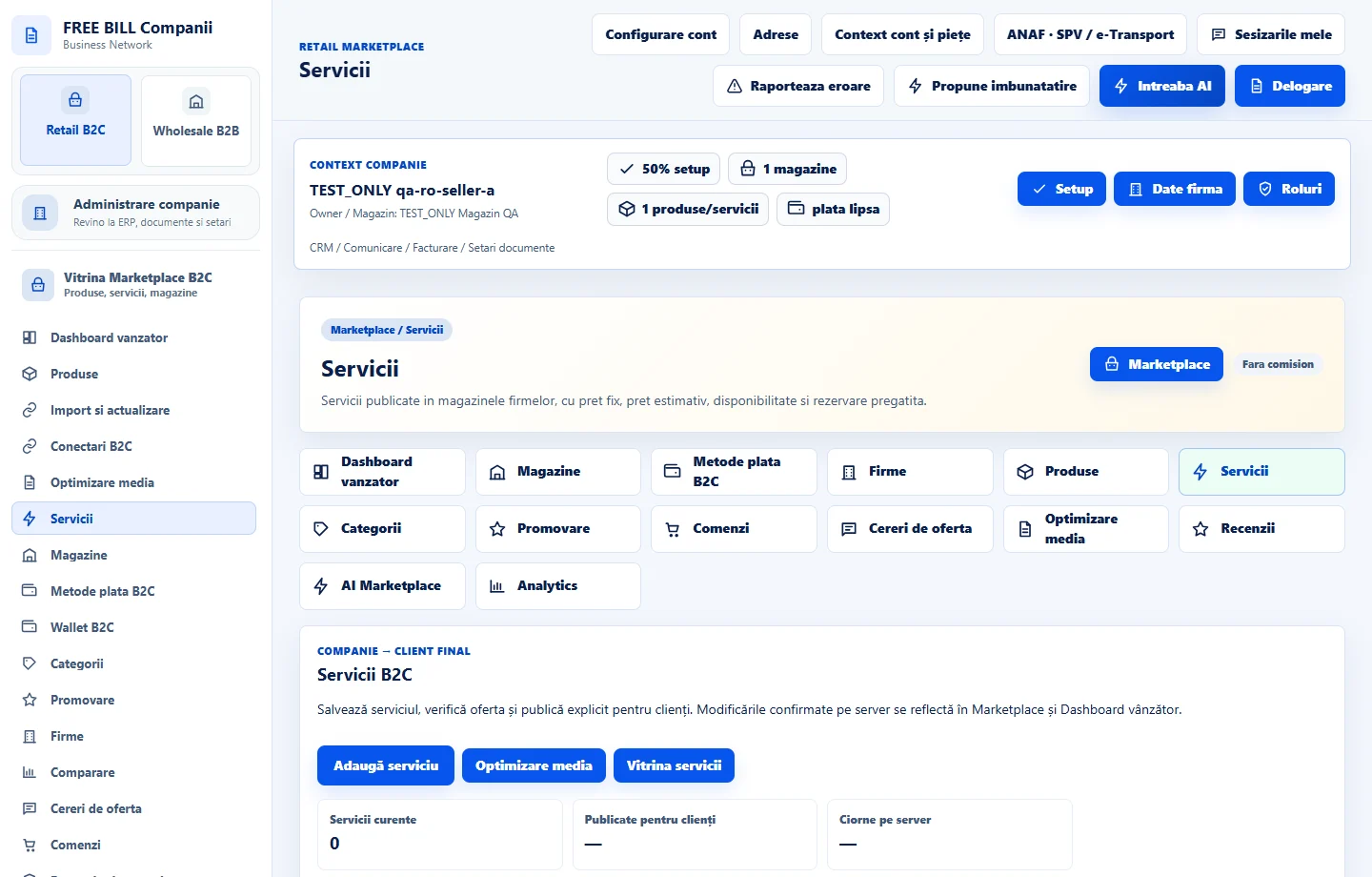
In «Retail B2C», open «Servicii», then «Adauga serviciu B2C». Select the company's store and, if useful, the existing service in «Sursa ERP».
Describe what's included
Enter the title, «Cod serviciu» and category. In «Descriere» and «Descriere extinsa», explain what the service includes, its service area and exclusions.
Set the rate and booking options
Enter «Preț / estimare inițială» and choose an available price type. Set «Durata» and «Rezervare» to match how you work. For quote-based services, explain what information the customer should provide.
Prepare the presentation
Upload approved images or video. Complete the SEO information and check that the image, duration and description match the offer.
Save and check the customer flow
Select «Salveaza serviciu». Review the readiness indicators, choose the publication status and save. In the storefront, check whether the customer sees the intended booking or quote-request action.
Update the same offer
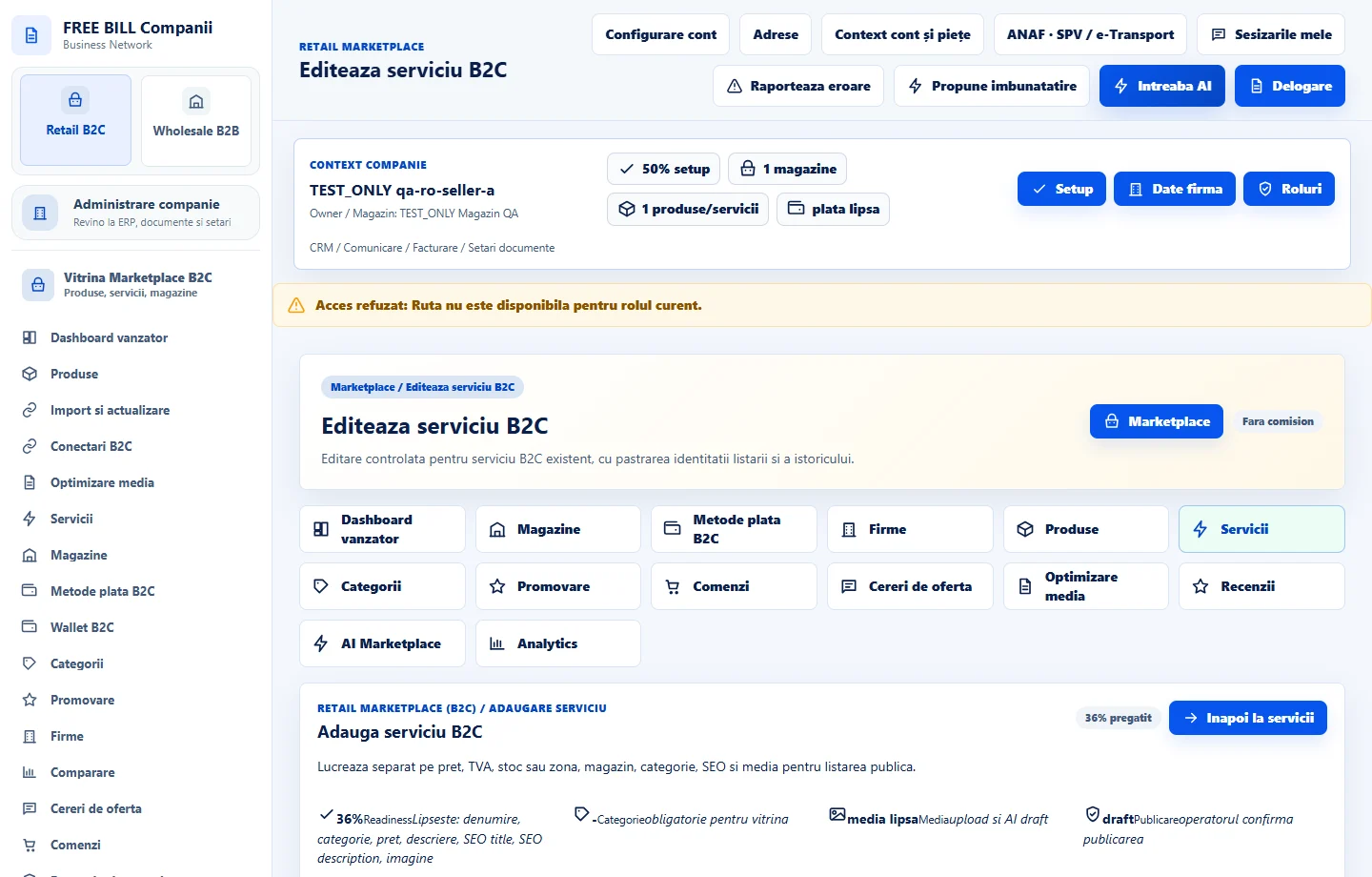
Use «Editeaza serviciu B2C» to change duration, rates or availability on the existing record. Review previously received bookings separately.
Application interface · Romanian · 3
Check the result
The service has its own listing and the appropriate customer action.
If something is missing
If booking is unavailable, check the selected mode and availability. For estimates, check the explanation and the offer confirmation flow.
Availability depends on your role, enabled modules, country and company configuration.
Open in FreeBill Conect