Respond to reviews and moderate customer content
Review the associated purchase, responses and customer media.
Before you begin
- Access to the store that received the review and permission to respond or moderate.
- Who it is for
- companie
- Where to find it
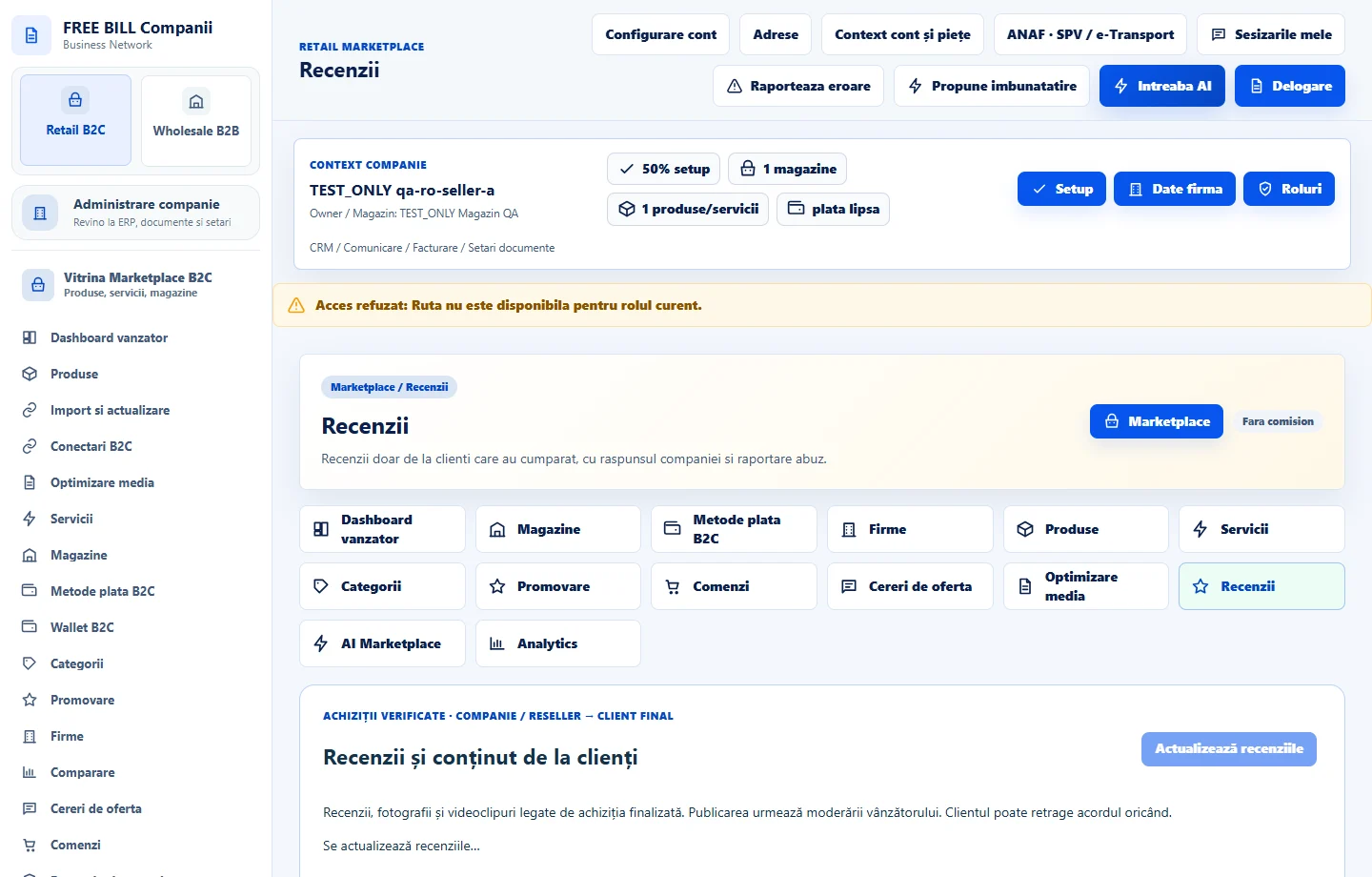
- Recenzii
Step by step
Open the store's reviews
In «Recenzii», choose the store and check the offer, associated purchase, rating and comment. Identify any images waiting for moderation.
Review the media
In «Recenzii și conținut de la clienți», open the attachment before deciding to publish. Check for contact details, people and documents. Record the moderation decision and its reason.
Respond or report abuse
Use the review form for a public reply. Keep the response specific and omit order or customer details. Use the reporting option where available.
Check the storefront
After saving, review history, status and public display on the store or offer page. Use the linked private conversation to resolve an order problem.
Check the result
Eligible reviews and replies are visible with the relevant moderation status.
If something is missing
If media is missing publicly, check approval and purchase association. If moderation is unavailable, check the store and role.
Availability depends on your role, enabled modules, country and company configuration.
Open in FreeBill Conect