Create and publish a product offer
Prepare a B2C product listing with its ERP source, price, stock, media and publication status.
Before you begin
- A B2C store and edit access.
- Product details, authorized images and the applicable shipping and payment rules.
- Who it is for
- companie
- Where to find it
- Adauga produs B2C
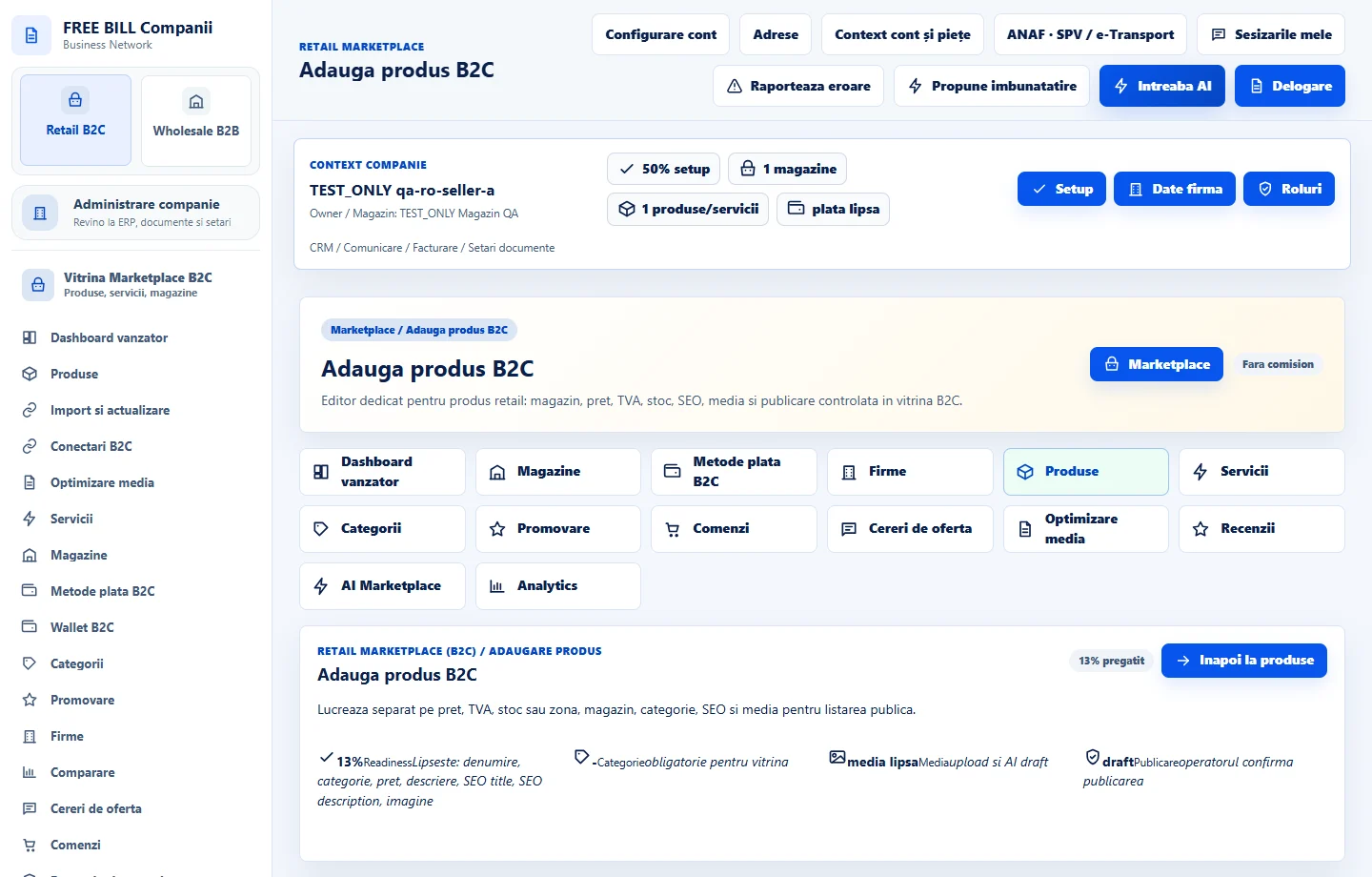
Step by step
Open the product editor
In «Retail B2C», go to «Produse» and open «Adauga produs B2C». Choose «Magazin». If the product already exists in the company records, select the correct «Sursa ERP».
Describe and classify the product
Enter the title, «SKU» and the appropriate category and subcategory where available. In «Descriere», explain what the buyer receives. Put measurements, materials, compatibility and terms in the extended description or dedicated fields.
Set pricing and stock
Enter «Pret», the applicable «TVA %» and, where relevant, «Pret promotional». Review «Stoc» and «Stoc minim». Enable «Permite backorder» only if the company accepts orders before replenishment.
Add media and metadata
Use «Incarca imagine» or «Incarca video» to attach the product files. Review the primary image, order and readability. Complete «SEO title», «SEO description» and «Slug SEO» if needed.
Save, review and publish
Select «Salveaza produs». Open the saved record and check its readiness, store, shipping and price. Set the public status only when the buyer-facing information is correct, then save again.
Check the storefront and update the existing offer
Open the public product page. Verify price, availability, media, variant and purchasing options. Use «Editeaza produs B2C» to correct the existing offer and preserve its history.
Application interface · Romanian · 2
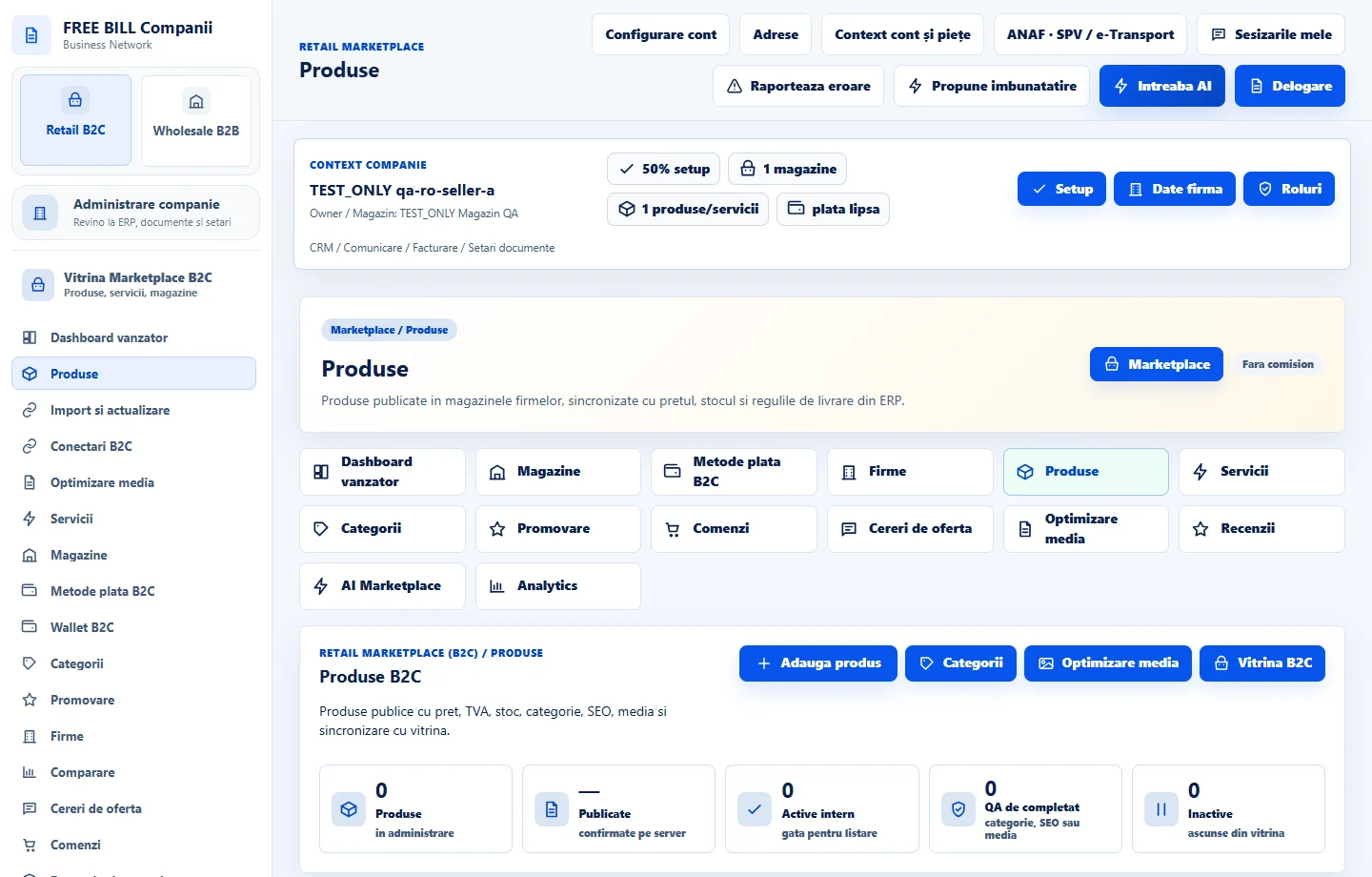
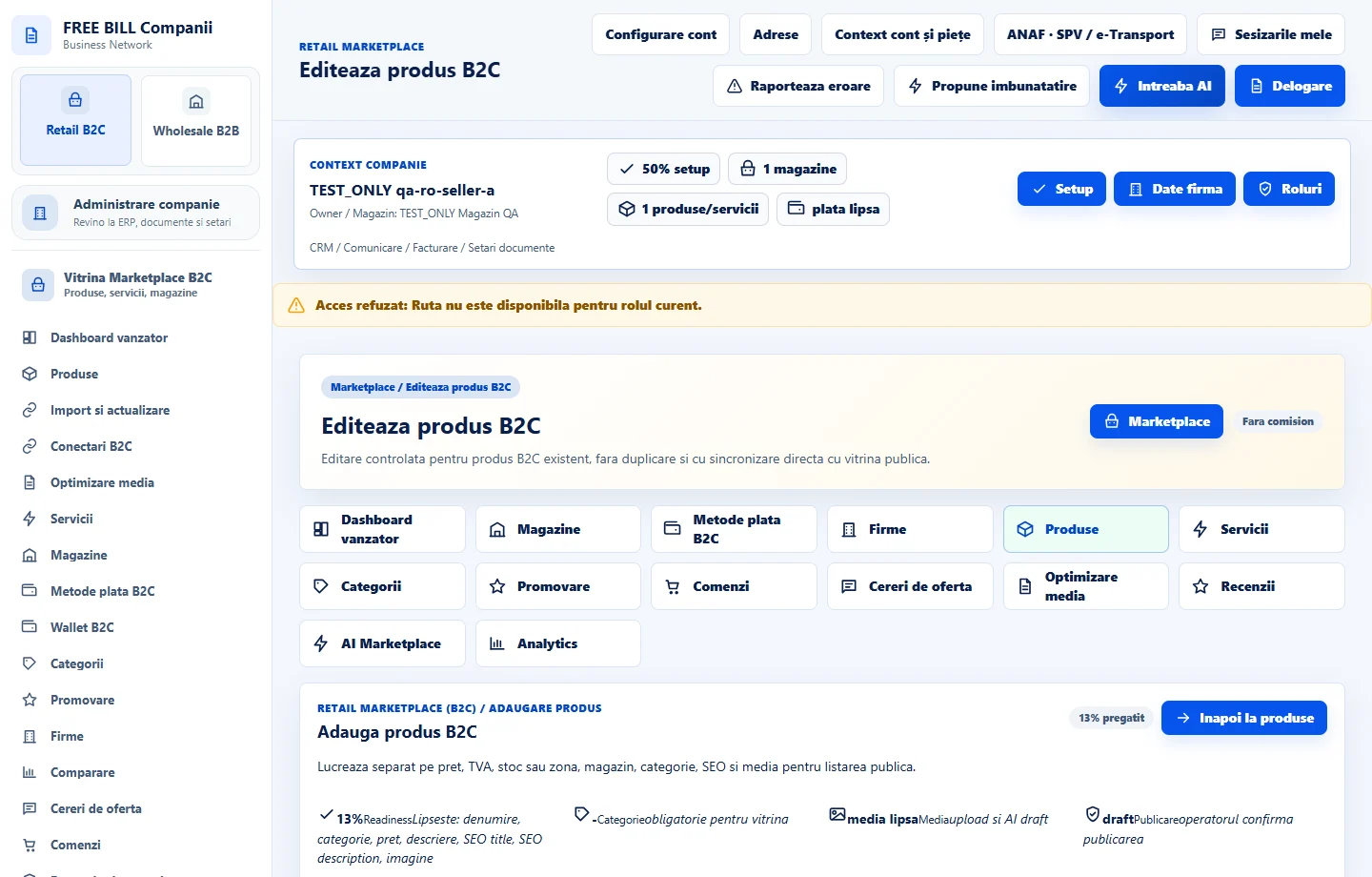
Check the result
The product is saved to the selected store and can be checked in the storefront once eligible.
If something is missing
If the offer is missing, check its store, category, publication status, availability and validation messages. If stock differs, check the ERP source and synchronization before editing manually.
Availability depends on your role, enabled modules, country and company configuration.
Open in FreeBill Conect