Set up B2C payment methods
Choose the payment methods available at checkout for each store.
Before you begin
- A store in the active company, configuration access and, where needed, the company's provider account.
- Who it is for
- companie
- Where to find it
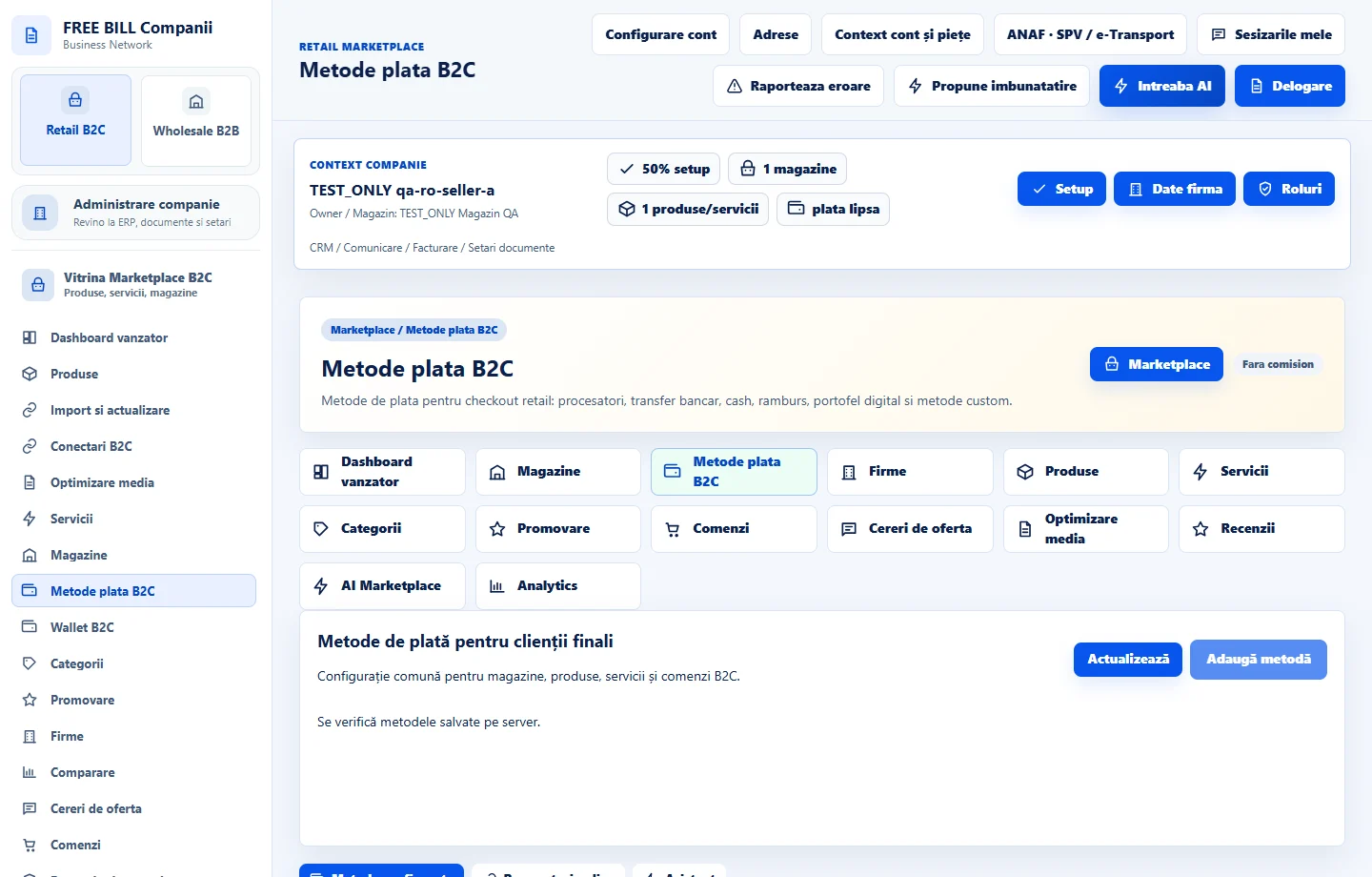
- Metode plata B2C
Step by step
Select the store and method
Open «Metode plata B2C». Choose «Magazin» and select an available method such as bank transfer, cash, cash on delivery or an online processor.
Enter payment instructions
Choose the currency and method status. Add instructions such as the reference to use on a transfer. If you set «Metodă preferată», check the result for that store.
Connect the company's processor
For online payments, select the processor and correct environment. Use the company's authorized connection and its configuration reference where required. Enter credentials only in the provider setup screen.
Save and test
Check that the method appears at checkout for the store, currency and destination. Test processor payments in the test environment, then verify the order and collections register.
Handle unconfirmed payments
If a payment is pending, use the processor check where available. For transfer or cash on delivery, confirm collection only after receiving bank or courier evidence.
Application interface · Romanian · 1
Check the result
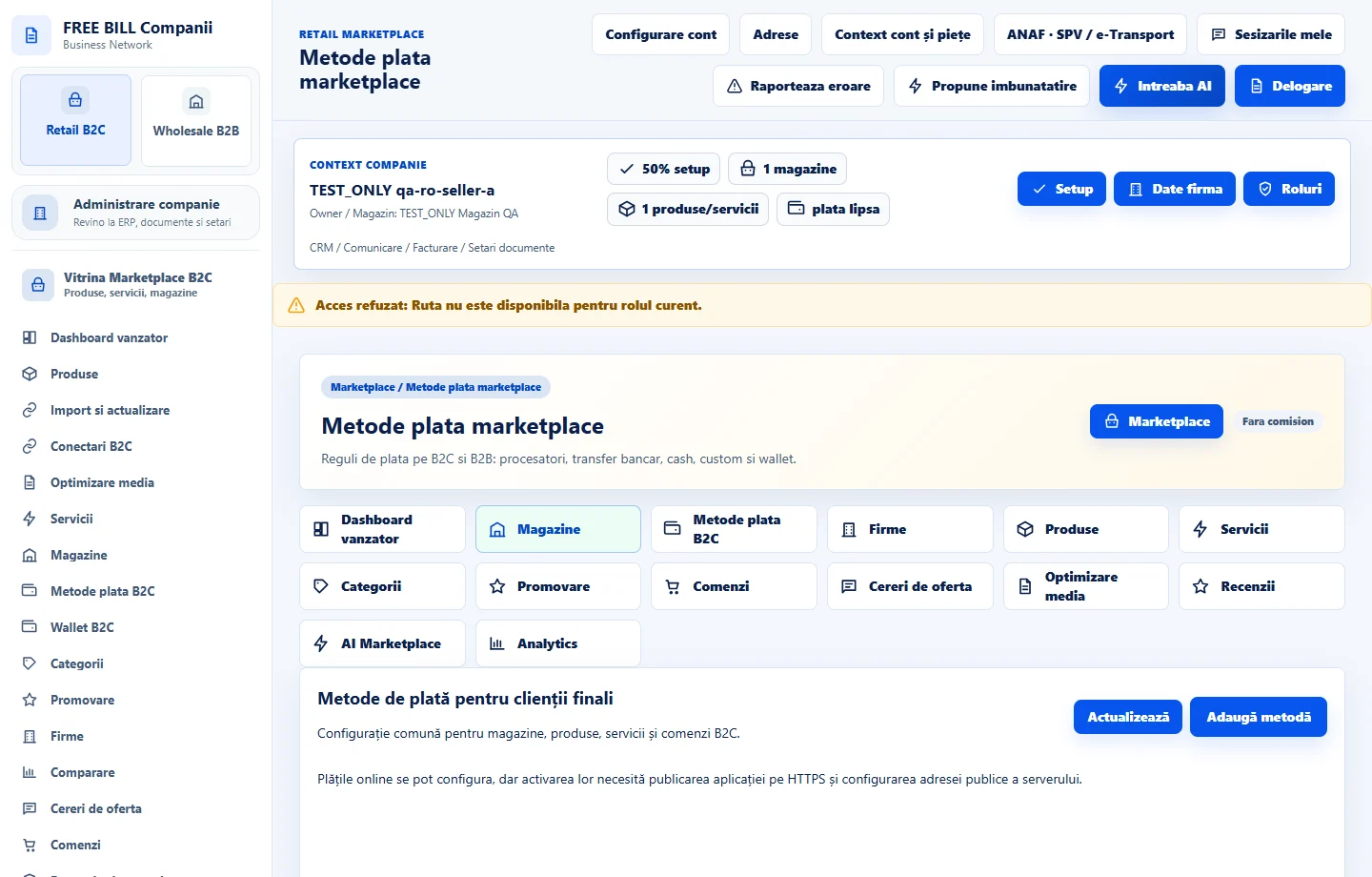
The store shows configured checkout methods and payments can be checked against their orders.
If something is missing
For a missing online method, check the processor, authorization, environment, currency, status and store. For cash on delivery, also check the delivery rule.
Availability depends on your role, enabled modules, country and company configuration.
Open in FreeBill Conect