Import and update the catalogue in batches
Validate data and review differences before applying B2C catalogue changes.
Before you begin
- Edit access, a selected store and a supported CSV or JSON file.
- Stable identifiers for existing products and a copy of the source data.
- Who it is for
- companie
- Where to find it
- Import si actualizare
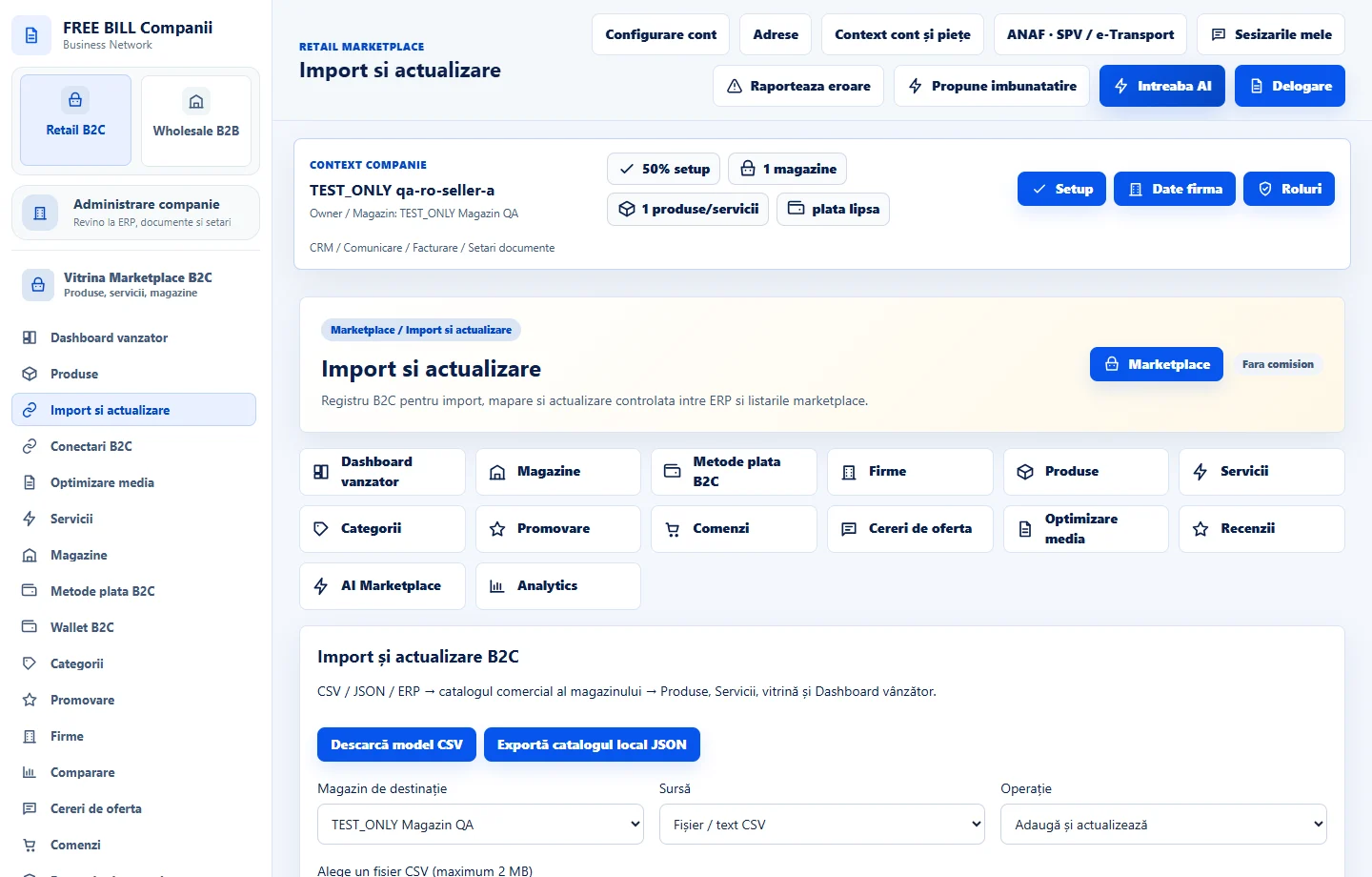
Step by step
Choose the import scope
Open «Import si actualizare». Select the store, source and intended action. Decide which fields may change, especially price, stock and description.
Load the file and map fields
Use accepted headers or map source fields to identifiers, title, price, stock and the other fields shown. To update an existing offer, use its established source identifier.
Review the preview
Read the counts for additions, updates, unchanged rows and errors. Check a sample of prices, quantities and currencies. Correct invalid rows at the source before applying.
Apply and check history
Apply the confirmed batch. Wait for the server response, then review history and row errors. Check several items in both the ERP and public catalogue.
Resolve differences
If only part of the batch applied, isolate the remaining rows and generate a new preview. Keep the same identifiers and review differences before applying again.
Check the result
The batch updates are traceable in history with row-level errors.
If something is missing
For duplicates, check SKU mapping and the store identity. For invalid amounts, check the decimal separator and currency. If a response times out, check history before retrying.
Availability depends on your role, enabled modules, country and company configuration.
Open in FreeBill Conect