Choose and manage categories and subcategories
Classify offers and check which categories are available for assignment.
Before you begin
- Catalogue edit permission. Registry administration requires the relevant role.
- Who it is for
- companie
- Where to find it
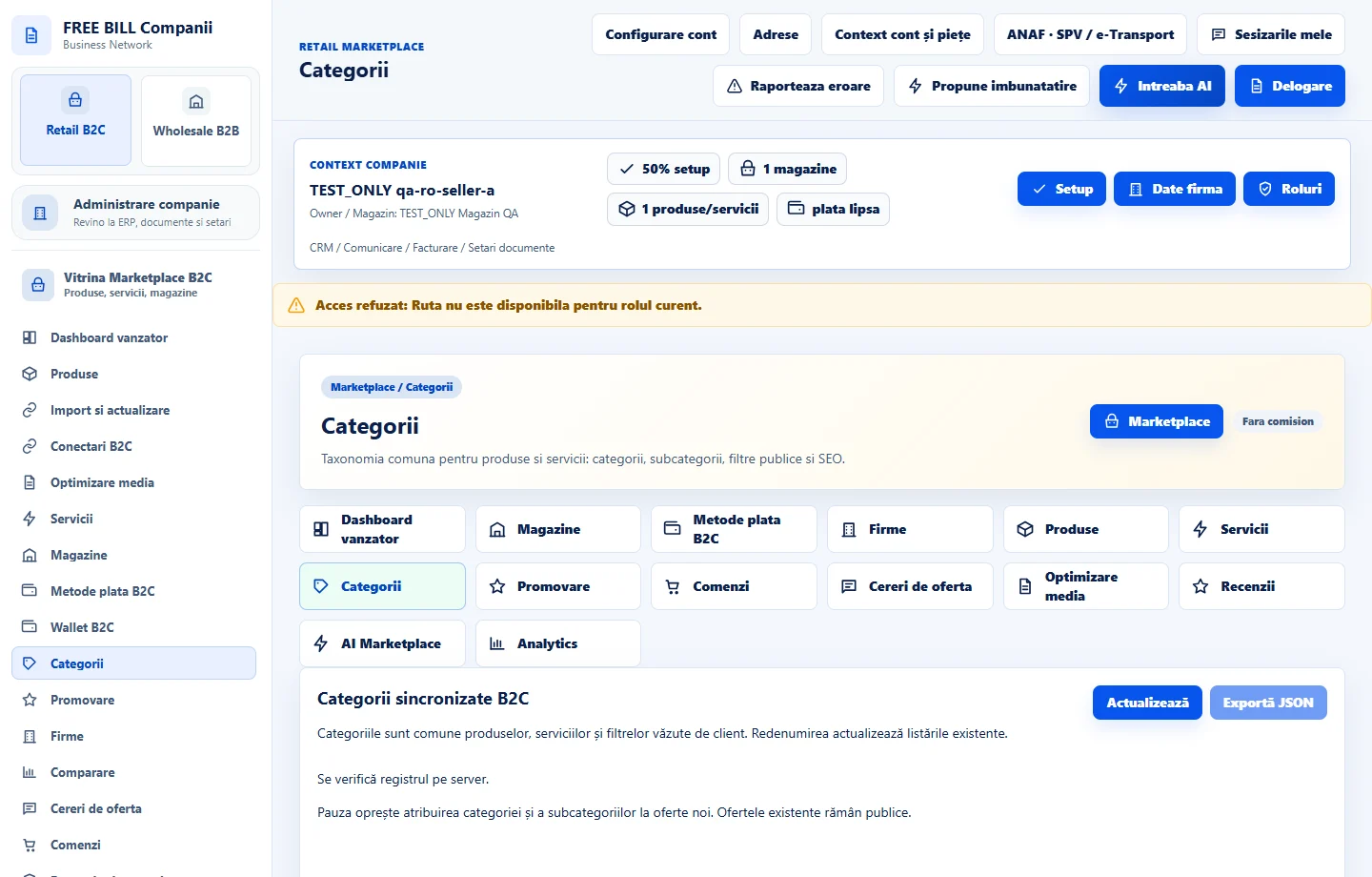
- Categorii
Step by step
Find the right category
In the offer editor, filter to products or services where available and search for a term. Select the most specific category and subcategory in the right branch.
Check the catalogue
Save the offer and check the storefront hierarchy and filter. Choose the services branch for a service even when a product category has a similar name.
Open the registry if available
If your role shows «Categorii», use the available search, type, category, subcategory and status controls. Check whether you are in the shared registry or «Categorii locale».
Edit and verify the impact
If permitted, use «Adaugă / editează» and verify the type and parent before saving. Pausing stops new assignments in that branch. Review existing public listings separately.
Check the result
The offers are assigned to an active category and can be found through storefront filters.
If something is missing
If the category is missing, check type, parent, status and permissions. Ask an administrator about a missing shared category.
Availability depends on your role, enabled modules, country and company configuration.
Open in FreeBill Conect