Review invoicing for retail orders
Follow the invoice and receipts from the B2C order using the appropriate role.
Before you begin
- A B2C order for the active account and invoicing access.
- Issuer details, a document series and applicable tax settings.
- Who it is for
- companie
- Where to find it
- Vanzari
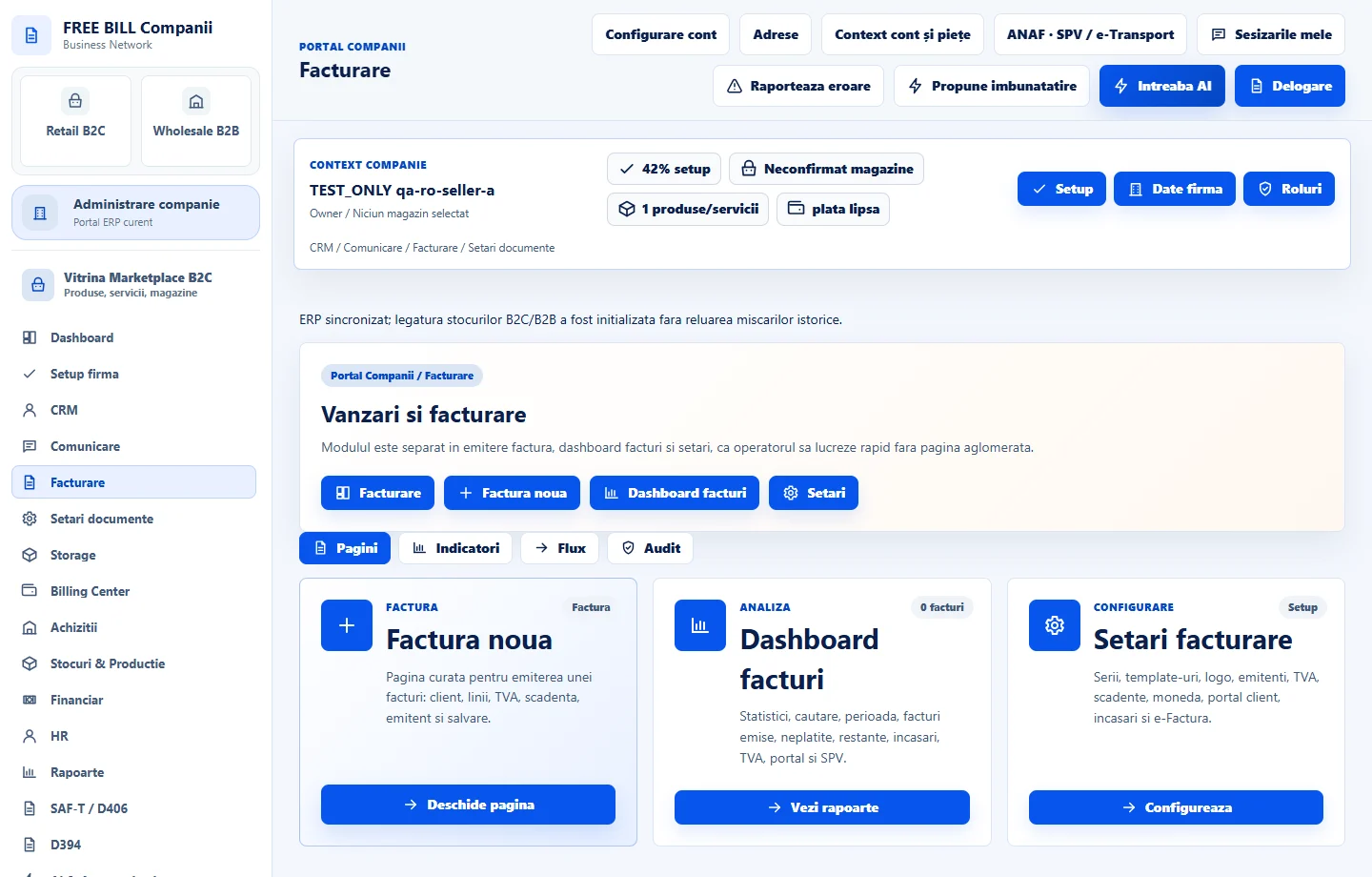
Step by step
Identify the order's documents
Open the order in «Comenzi» and check its linked document, customer information, total and payment status.
Open the invoicing screen for your account
For a company, use «Facturare» in the ERP and open the linked document or order. The partner-specific «Facturare B2C» area applies when it is shown for that role.
Review tax details
Verify issuer, buyer, series, date, currency, lines and tax. Follow the company's fiscal workflow and check document confirmation after issuance.
Reconcile invoice and payment
Compare the document total with the confirmed payment and order balance. For corrections, use the process linked to the original document and follow any refund separately.
Check the result
The order, invoice and payment can be traced through their references.
If something is missing
Open the original record if a document exists. If issuance is unavailable, check role, order status and fiscal settings.
Availability depends on your role, enabled modules, country and company configuration.
Open in FreeBill Conect