Create and publish a B2B service offer
Set the price, capacity and delivery terms for resellers.
Before you begin
- Permission to manage B2B services, a store you own, and confirmed service details.
- Who it is for
- company
- Where to find it
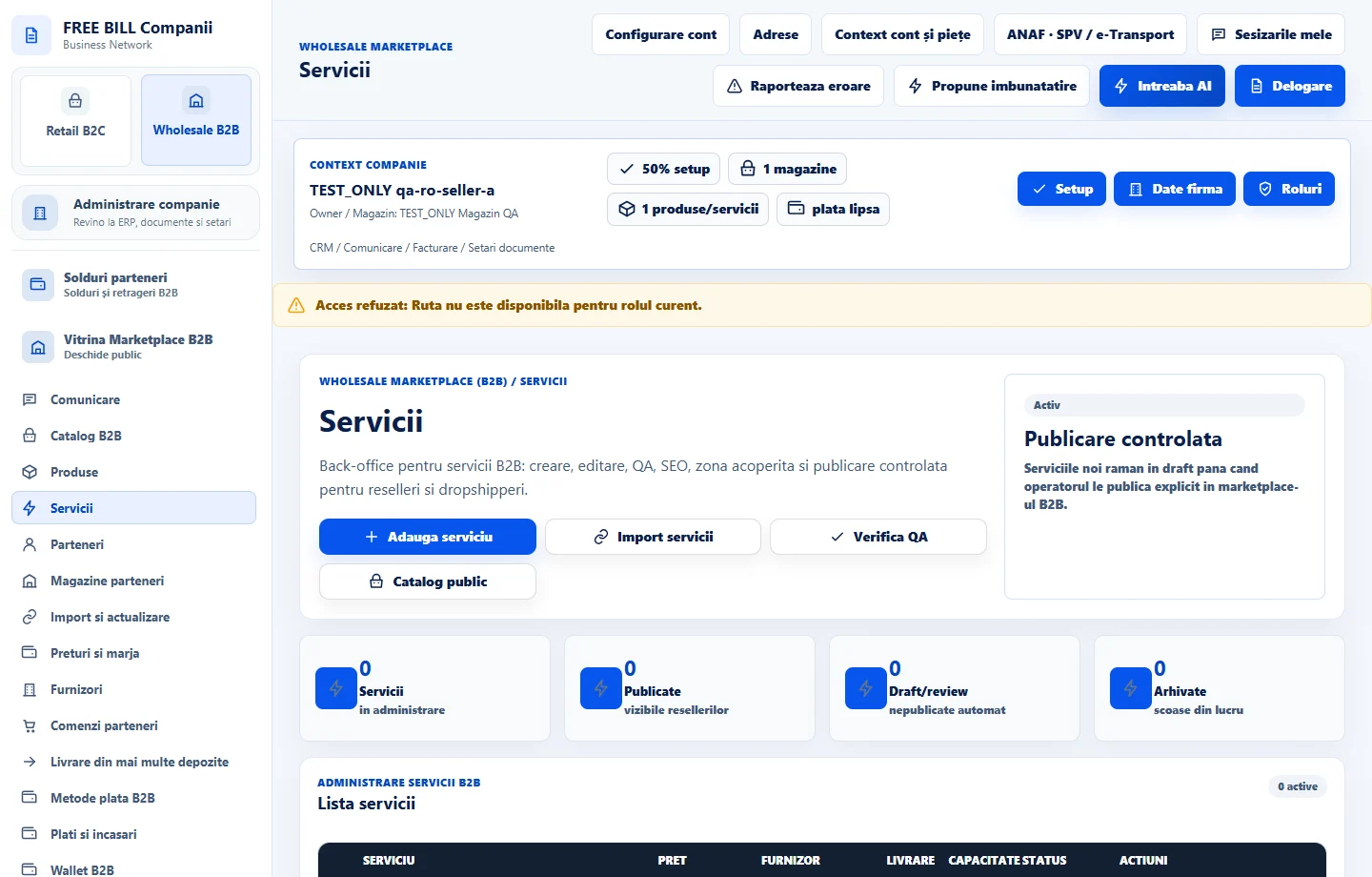
- Servicii
Step by step
Open the service editor
In «Wholesale B2B» open «Servicii», then «Adauga serviciu». For an existing offer choose «Editeaza».
Define the service and price unit
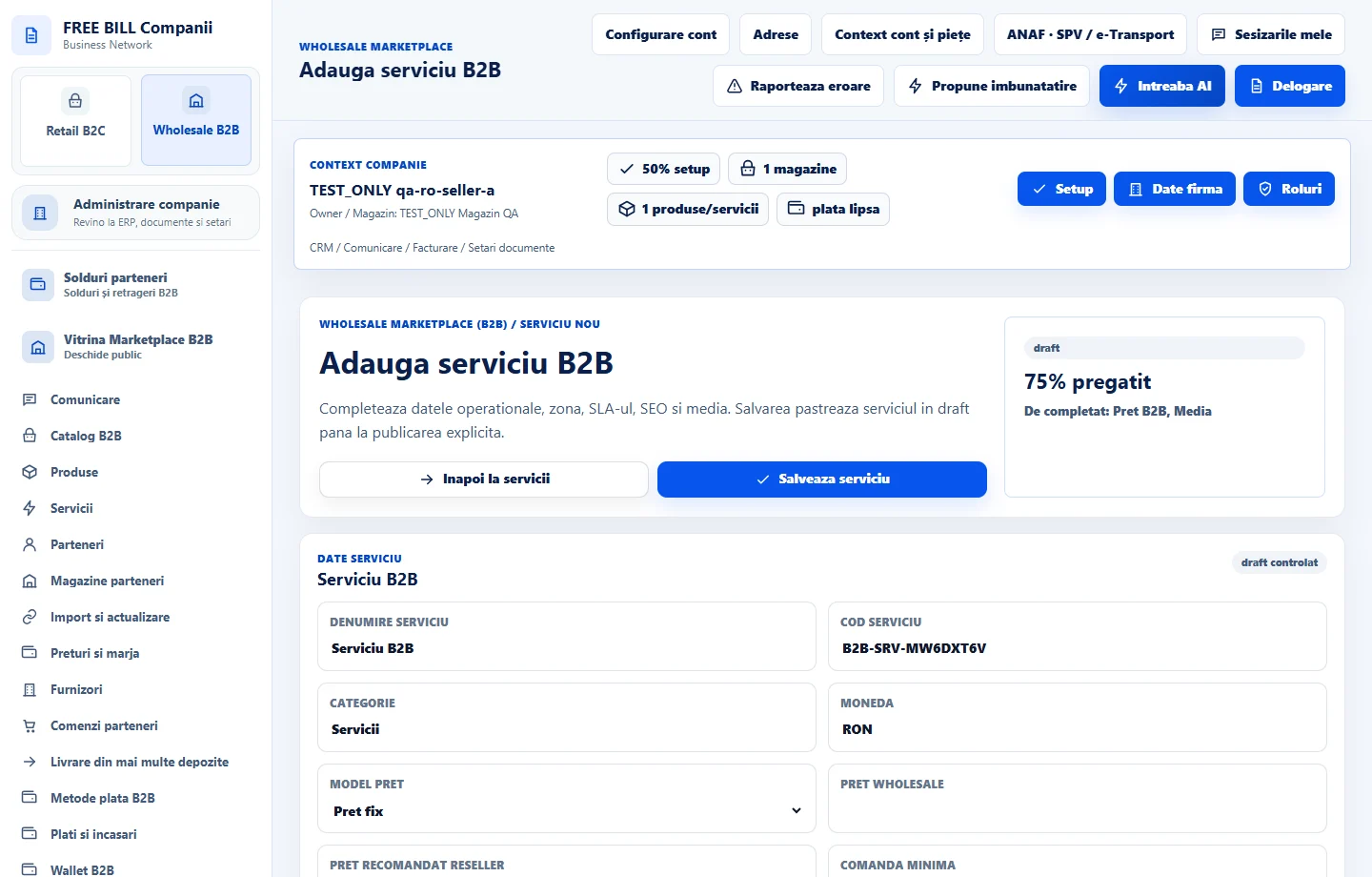
Enter «Denumire serviciu», «Cod serviciu», «Categorie» and «Moneda». Choose a fixed, hourly, project or recurring «Model pret» and enter «Pret wholesale» and «Pret recomandat reseller».
Configure delivery and availability
Enter «Comanda minima», «Capacitate/saptamana», «Termen zile» and «Durata minute». Set «Mod livrare» to online, at the customer, at the supplier or hybrid. Add «Zona acoperita» and any commercial or service-level terms you can meet.
Add a description and visuals
Explain what is included, what the partner should prepare and what you deliver. Use «Upload imagine» for your images or «Upload video» for a video example. If you use a configured AI connection, review the output.
Save, verify and publish
Choose «Salveaza serviciu», check the row in «Servicii» with «Verifica QA», then select «Publica in marketplace». Find the offer and confirm the displayed pricing model and delivery terms.
Update availability
If your team's availability or coverage changes, edit the offer and check the saved values. Use «Dezactiveaza» to pause the offer.
Application interface · Romanian · 1
Check the result
The service is published with its price, capacity and coverage configured.
If something is missing
If the service is still a draft, check that you used the row's publishing action after saving and read any validation message.
Availability depends on your role, enabled modules, country and company configuration.
Open in FreeBill Conect