Create and publish a wholesale product offer
Set up your product, check its commercial terms and publish it explicitly to Wholesale.
Before you begin
- Permission to manage B2B products and the supplying company selected.
- SKU, unit, category, available quantity, offer currency and commercial terms.
- Who it is for
- company
- Where to find it
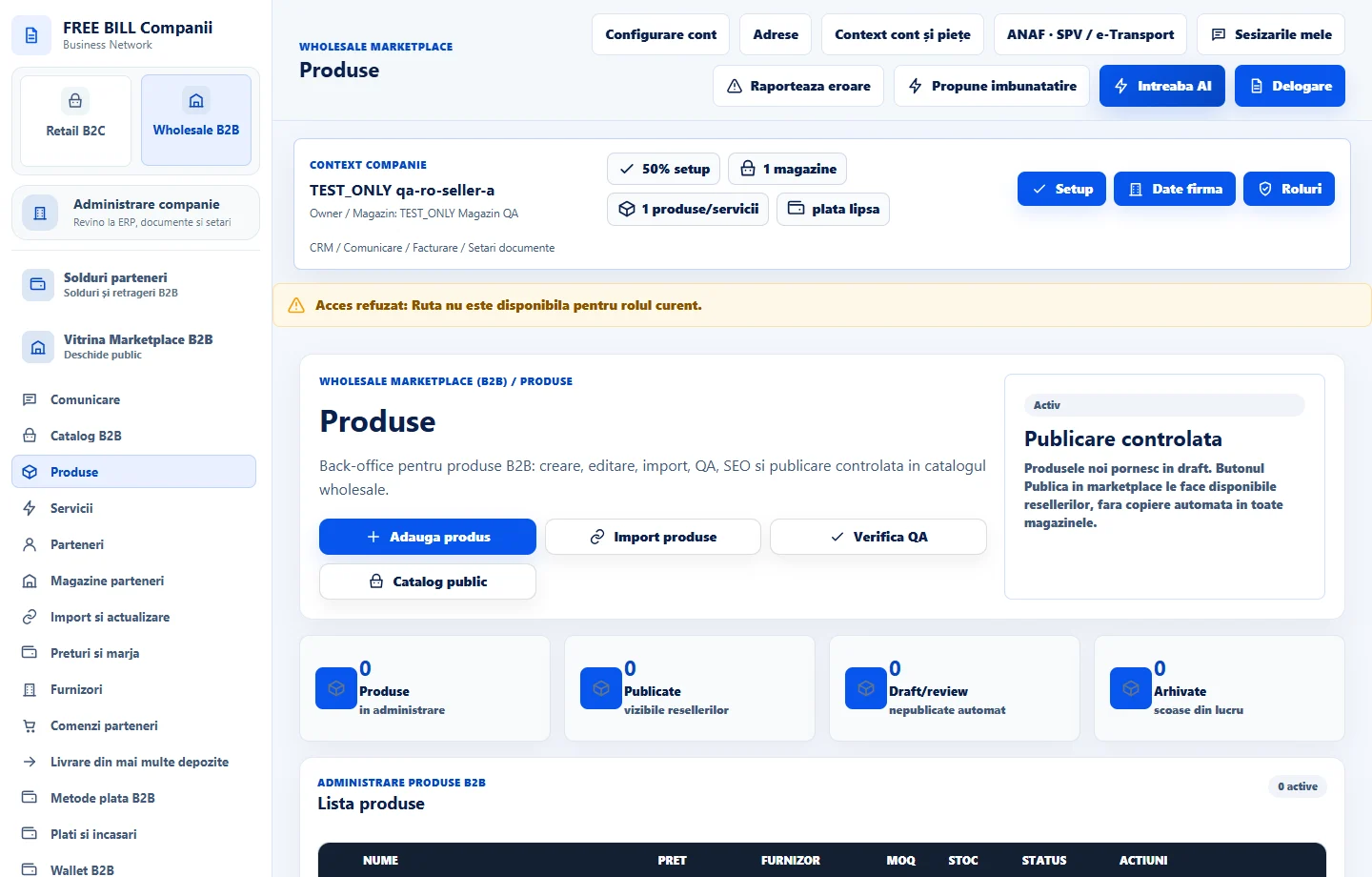
- Produse
Step by step
Open the editor
In «Wholesale B2B» open «Produse» and choose «Adauga produs». For an existing product, choose «Editeaza» on its row.
Enter product identifiers
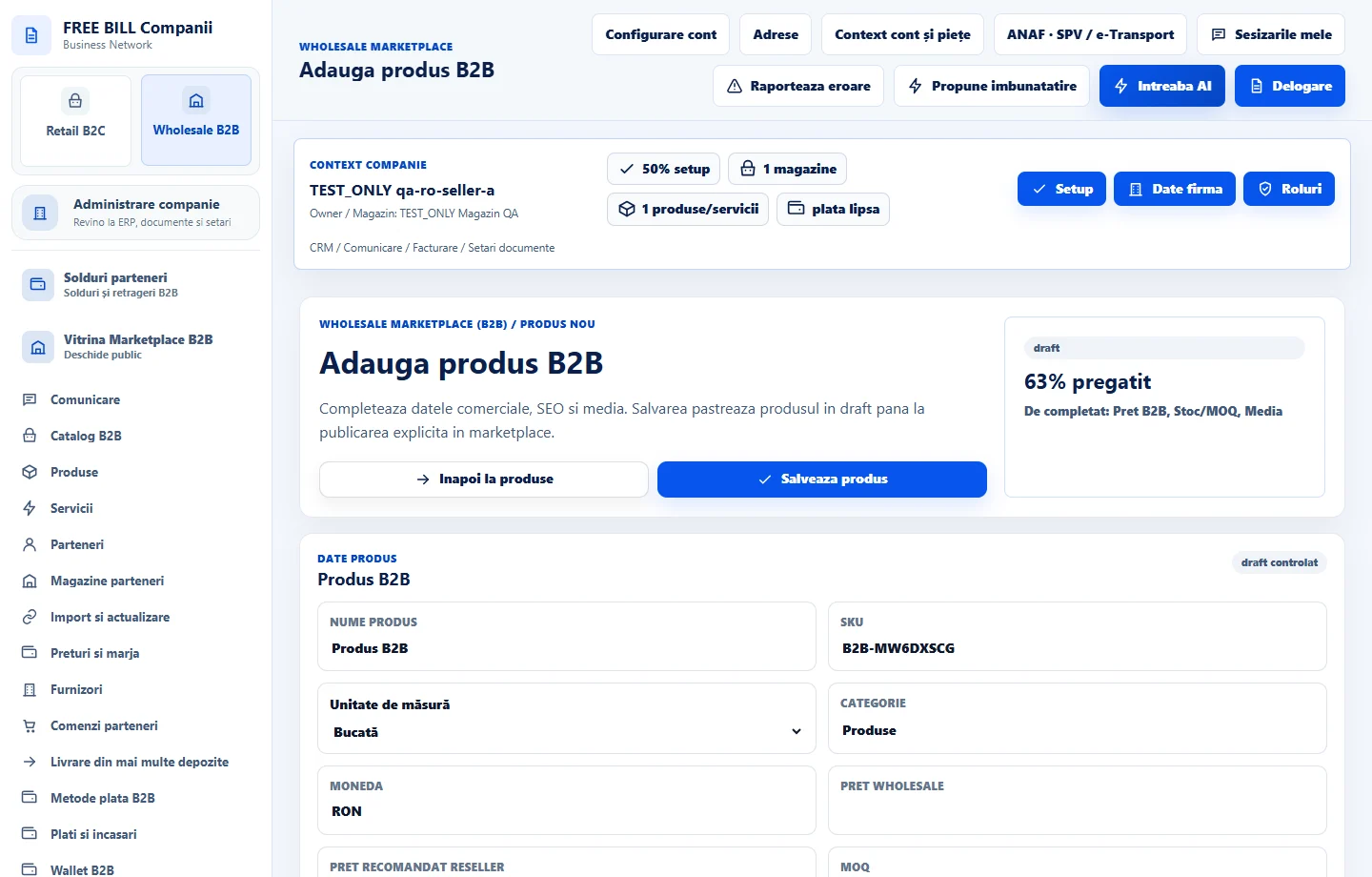
Under «Date produs», enter «Nume produs», «SKU», the unit and «Categorie». In «Furnizor», check which of your stores will appear on the offer.
Enter commercial terms
Fill in «Moneda», «Pret wholesale», «Pret recomandat reseller», «MOQ» and «Stoc furnizor». For example, for boxes sold in quantities of ten or more, enter 10 as MOQ and the actual available quantity as stock. Add «Termen zile» and «Conditii comerciale».
Describe the product and prepare its media
Under «SEO si asistenta AI», use «Descriere» to write the copy and «Upload imagine» or «Upload video» to attach your own material. Check usage rights, accuracy and any AI draft before saving.
Save the draft and check its row
Choose «Salveaza produs». Return to «Produse», find the item and run «Verifica QA» to review flagged fields. Confirm the displayed price, stock and store.
Publish and verify the offer
Choose «Publica in marketplace» on the product row. Once confirmed, check for «Publicat marketplace» and find the offer in the relevant B2B catalog.
Manage an existing offer
Use «Editeaza» for changes. If you need to take the offer offline, use the deactivation action and check the new status. Use «Sterge» only to archive an offer you no longer manage.
Application interface · Romanian · 1
Check the result
The offer appears as published in the B2B list, with price visibility governed by partner access.
If something is missing
If publication fails, read the exact error, check the store and required fields, then return to the same saved offer.
Availability depends on your role, enabled modules, country and company configuration.
Open in FreeBill Conect