Issue a quote and track a B2B agreement
Work with requests for quotes, contract prices, volume tiers, reservations and creator collaborations.
Before you begin
- A company account with access to «Advanced B2B & Growth» and an eligible commercial relationship.
- Who it is for
- company
- Where to find it
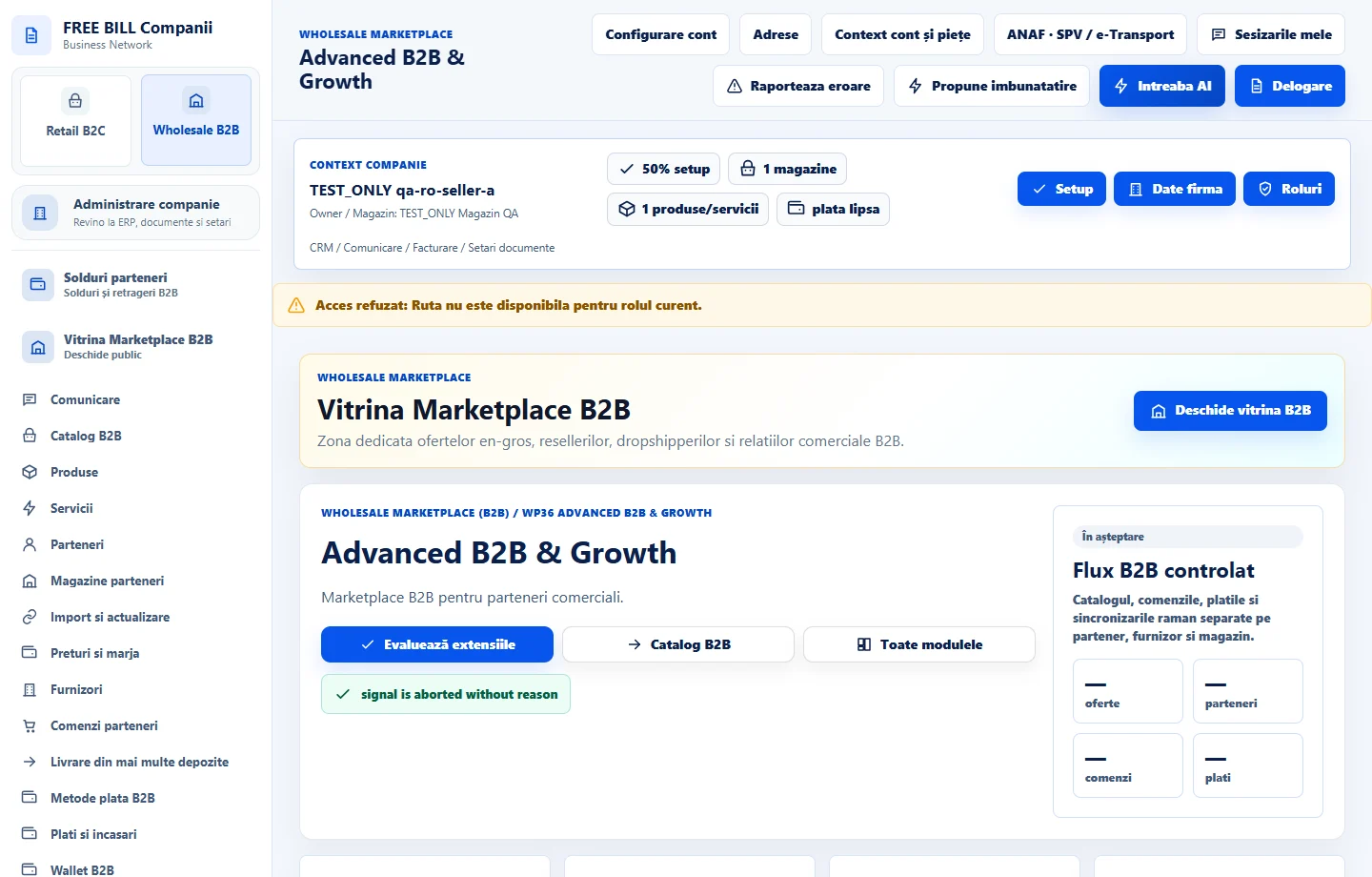
- Advanced B2B & Growth
Step by step
Open commercial requests
In «Advanced B2B & Growth», select the company and open «RFQ și acorduri». Open the reseller's request and check the store, offers, quantity and dates.
Build the quote
Add items and the final unit price in the denomination shown. Enter volume tiers, expiry, payment terms and delivery conditions. Configure scheduling or stock reservation only if agreed.
Issue the quote and follow the negotiation
Enter «Explicație comună / răspuns» and choose «Emite cotația». Check «Versiuni și istoric» for counteroffers and agreement. When orders exist, open «Comenzi din acord» and review their documents.
Review creator collaborations
Under «Creatori», open the case and review the delivered material and its rights. Choose «Aprobă materialul» or «Respinge» after checking it.
Check the result and reservations
Refresh the case and review its status. If ending the agreement, check «Închide acordul / eliberează rezervarea» and verify its effect in the register.
Check the result
You can track the quote, agreement and related orders or reservations in the same case.
If something is missing
If the request is missing, check your permission and role. Company and reseller screens offer different actions.
Availability depends on your role, enabled modules, country and company configuration.
Open in FreeBill Conect