Prepare and submit a Romanian e-Factura
Generate or import invoice XML, validate it and follow ANAF's result for that invoice.
Before you begin
- An invoice belonging to the selected Romanian company, with verified customer and fiscal details.
- The company's SPV connection, correct environment and access authorization.
- Who it is for
- Authorized company user with invoice and fiscal permissions
- Where to find it
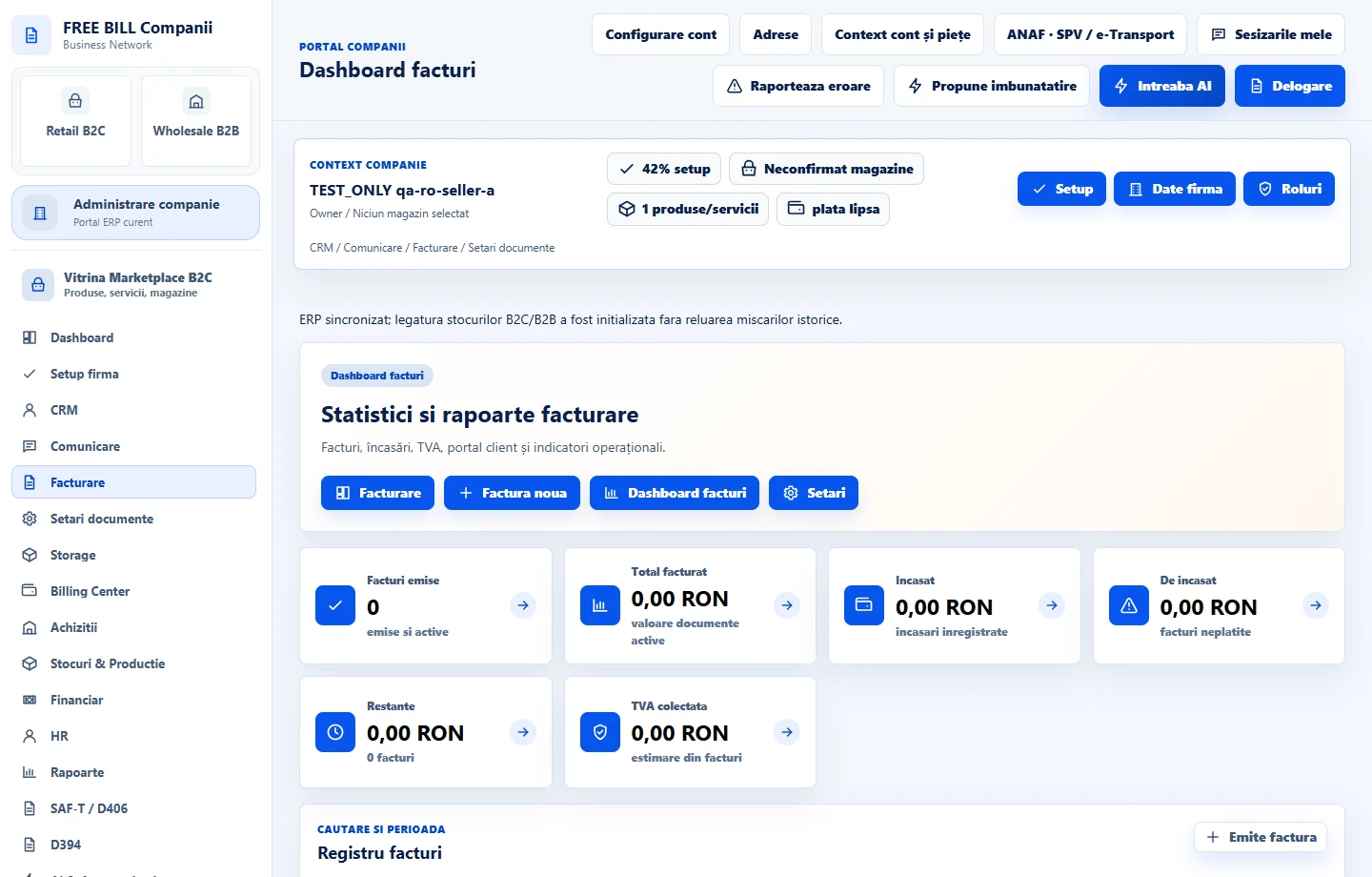
- Dashboard facturi
Step by step
Open the invoice's SPV panel
Go to «Vânzări» → «Facturi», locate the intended invoice and open its «SPV» action. Confirm the company and invoice number.
Prepare the XML
Select the fiscal recipient B2B or B2C. Use «Genereaza XML din factura» or import the intended XML through «XML UBL / CreditNote». Review the generated document before proceeding.
Run local validation
Select «Verifica local XML-ul». Resolve the reported errors in the underlying document or imported XML. This check does not send the invoice to ANAF.
Prepare and validate with ANAF
With SPV connected, select «Pregateste pentru SPV», then «Valideaza XML la ANAF». This validation sends the XML to ANAF's validation service; it is separate from submitting the invoice.
Confirm submission
Only after successful validation, review the invoice XML and displayed environment. Tick the explicit confirmation and select «Confirma trimiterea la ANAF» when you intend to transmit it.
Reconcile the result
Inspect the upload index, use «Verifica starea ANAF» and, when available, «Descarca raspunsul ZIP». Keep the response and resolve any rejection; an upload index alone is not final acceptance.
Check the result
The invoice has a traceable submission record and an ANAF response state. Verify acceptance rather than relying on the local validation or upload state alone.
If something is missing
If XML is missing, generate or import it first. If a submission's outcome is uncertain, check its existing ANAF state before trying another submission. Resolve authorization or validation errors for the same company.
Availability depends on your role, enabled modules, country and company configuration.
Open in FreeBill Conect