Review and manage the company setup checklist
See what the server has confirmed, mark reviewed items and manage optional steps.
Before you begin
- The correct company selected, with setup permissions confirmed.
- Who it is for
- Company owner or operator with access to the checklist and related modules.
- Where to find it
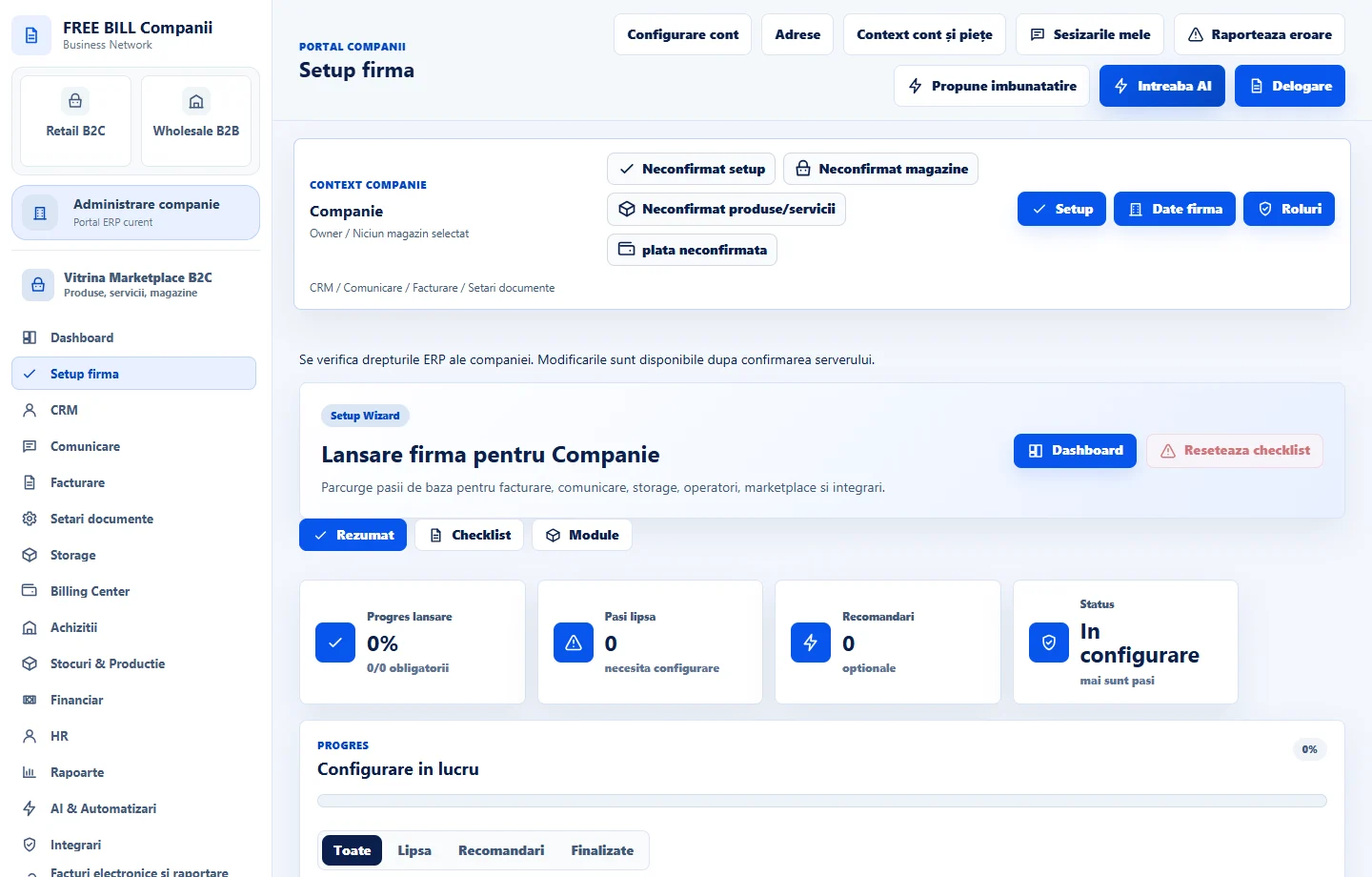
- Setup firma
Step by step
Check the company's progress
Open «Setup firmă» and confirm the company name in the header. Compare progress with the required and optional steps in the summary. Filter the list to find items awaiting confirmation.
Complete the requirement in its source module
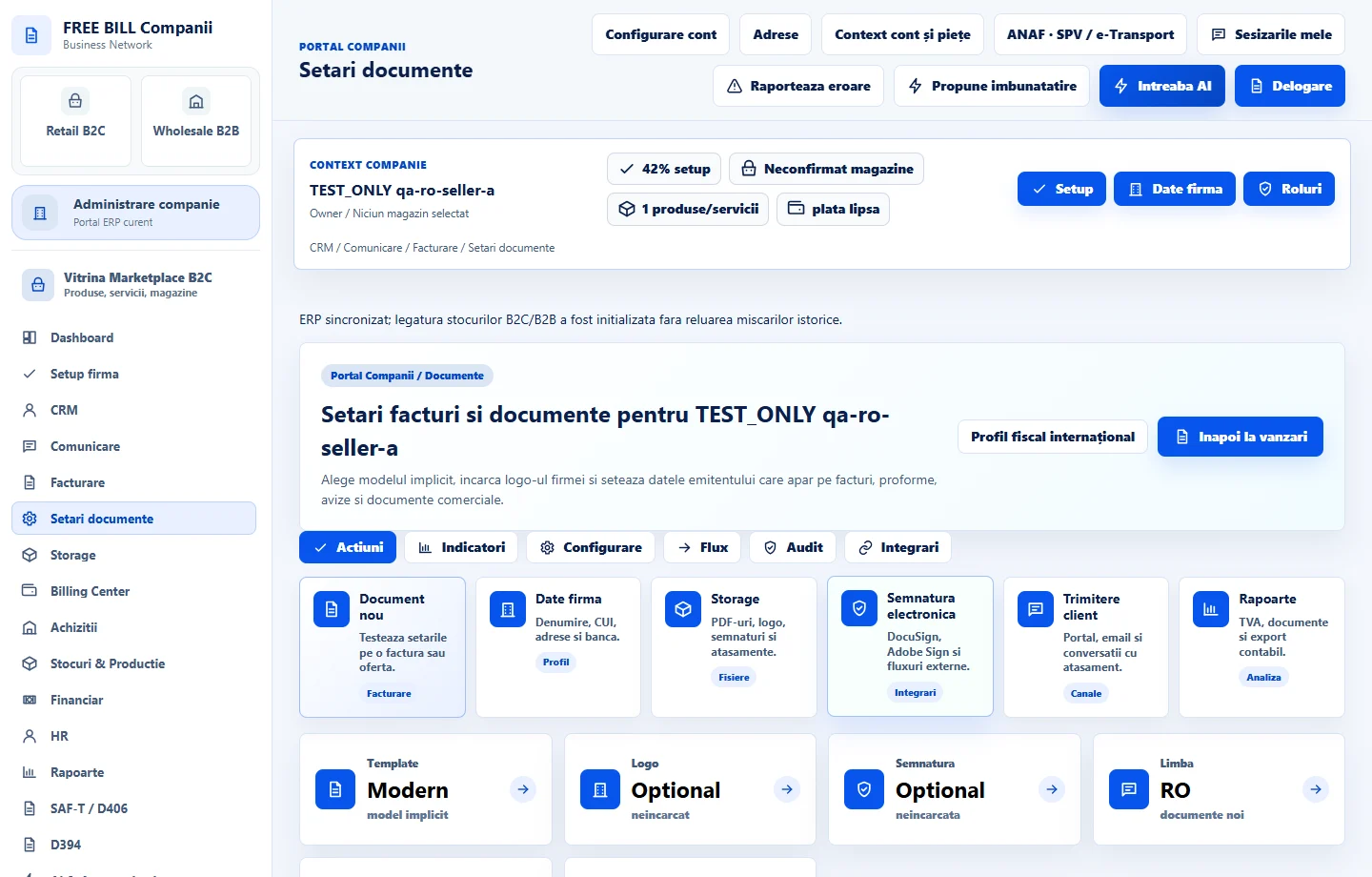
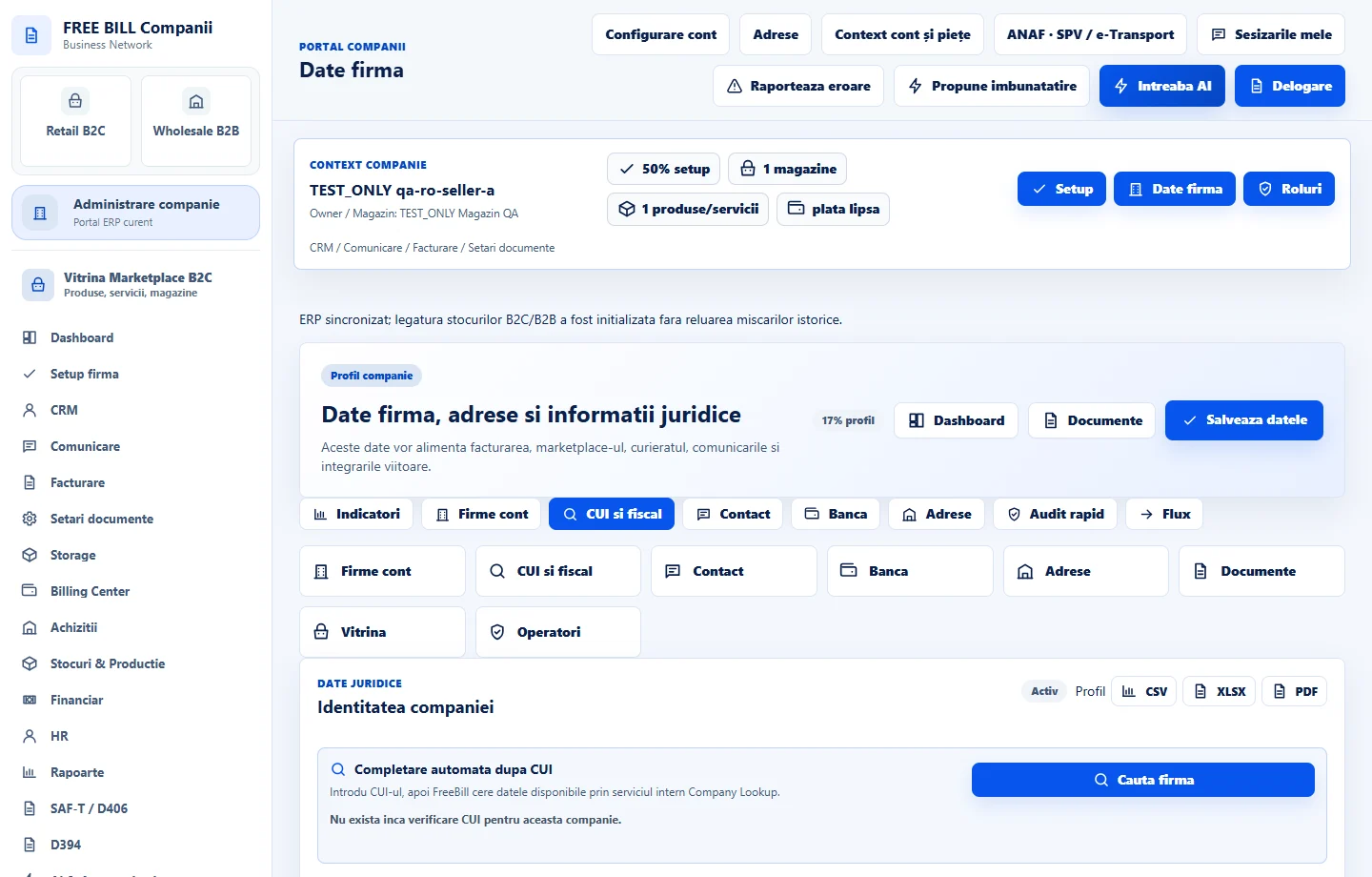
Use the button on the row to go directly to the module. Depending on the requirement, complete and save the company details, document series and issuer, payment method or operator permissions. Return to the list and check the updated status.
Mark a step as reviewed
If you have reviewed a step and there is still work to do, select «Marchează» to mark it «Revizuit». Operational confirmation appears once the requirement is met in the source module.
Hide an optional step or reset the review
Select «Ascunde» for an optional item that does not apply to the company. To review the checklist afresh, use «Resetează checklist» and check the steps and statuses supplied by the modules again.
Continue with the setup guide
Select «Configurează firma» to return to the account setup guide. After saving, use «Setup firmă» to track the company's ongoing operational progress.
Application interface · Romanian · 3
Check the result
The checklist shows confirmed requirements, reviewed items and the optional steps still visible for the active company.
If something is missing
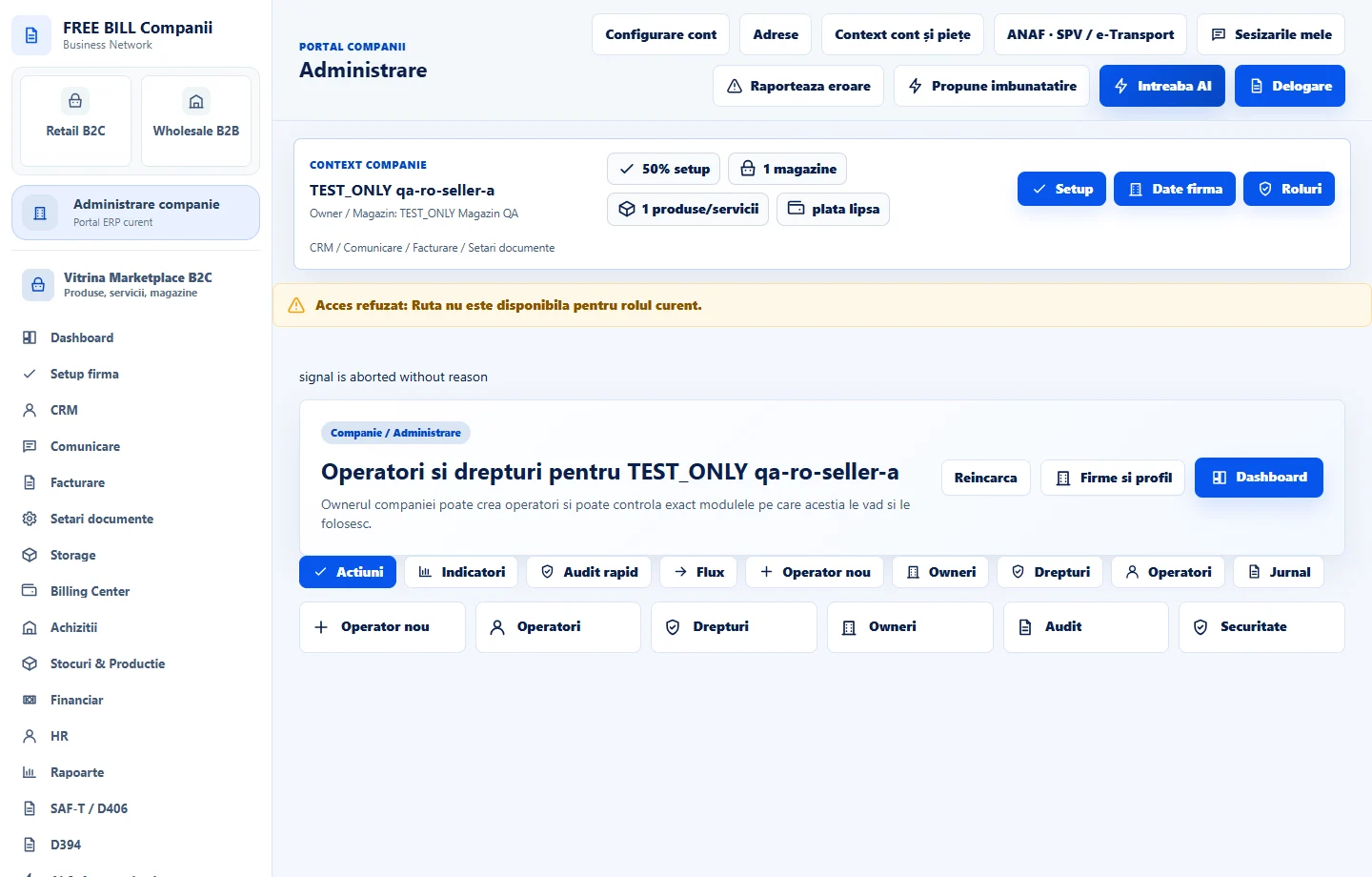
If a reviewed step still appears incomplete, open the source module from its row and check that the required details were saved. If the controls are disabled, check the active company and your setup permissions.
Availability depends on your role, enabled modules, country and company configuration.
Open in FreeBill Conect