Complete the company account setup guide
Set up your profile, company and operating context, then review which features are available and what still needs configuring.
Before you begin
- A confirmed company account with access to FreeBill Conect.
- Your company's legal name, country and contact information.
- Who it is for
- Company account owner or operator with setup permissions.
- Where to find it
- Dashboard
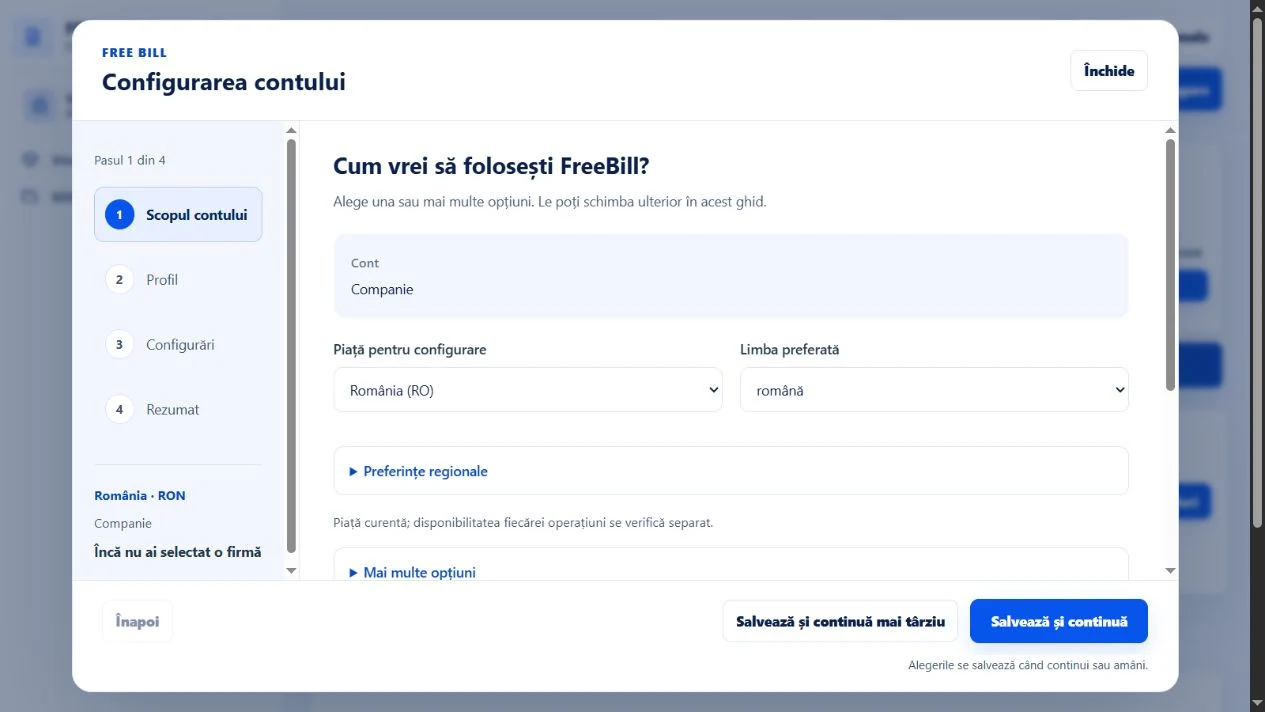
Step by step
Open «Configurare cont»
Sign in to the company portal and check the active company on the dashboard. Select «Configurare cont» in the header, or «Continuă configurarea» to resume a guide you already started.
Choose what you will use the account for
In «Scopul contului», select the activities you plan to use. Continue to see the information the guide requires for your role and market.
Review the profile
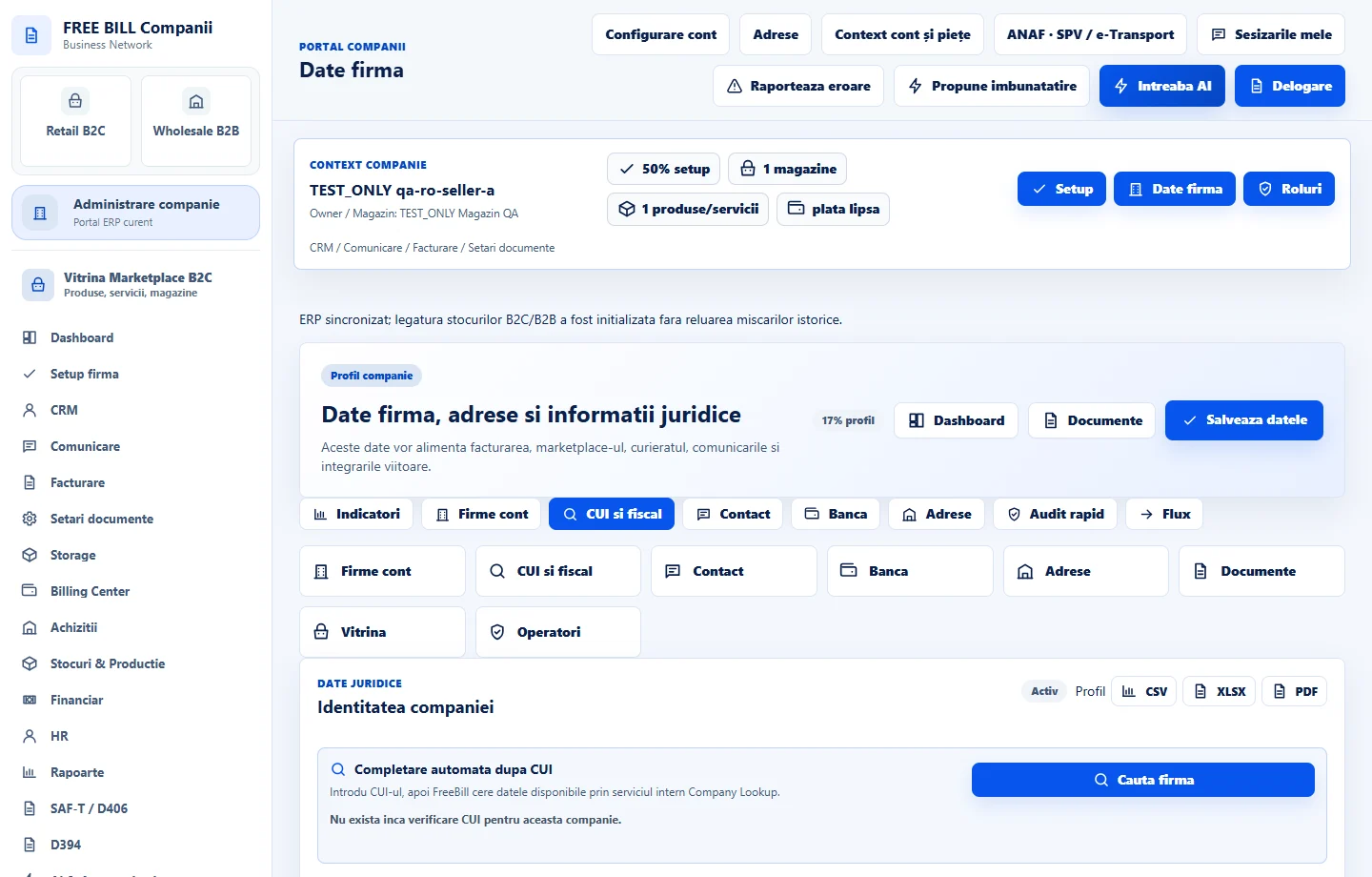
Under «Profil», check the displayed name, company and regional settings. Use «Forma juridică» beside the company name when that field is shown. You can also fill it in later under «Date firmă».
Select or add the legal entity
In «Configurări», open «Entitate juridică». «Entitate existentă» lists the company's saved legal entities. If the list only shows a dash, enter the new name under «Denumire pentru o entitate nouă» and save. For a saved entity, select it and use «Folosește selecția».
Configure the features you need
Open the panels you need for addresses, tax details, documents, shipping and payment methods. Save changes in each module and return to the guide. Enter credentials in the company's dedicated integration screen when connecting your own provider.
Review the summary and resume if needed
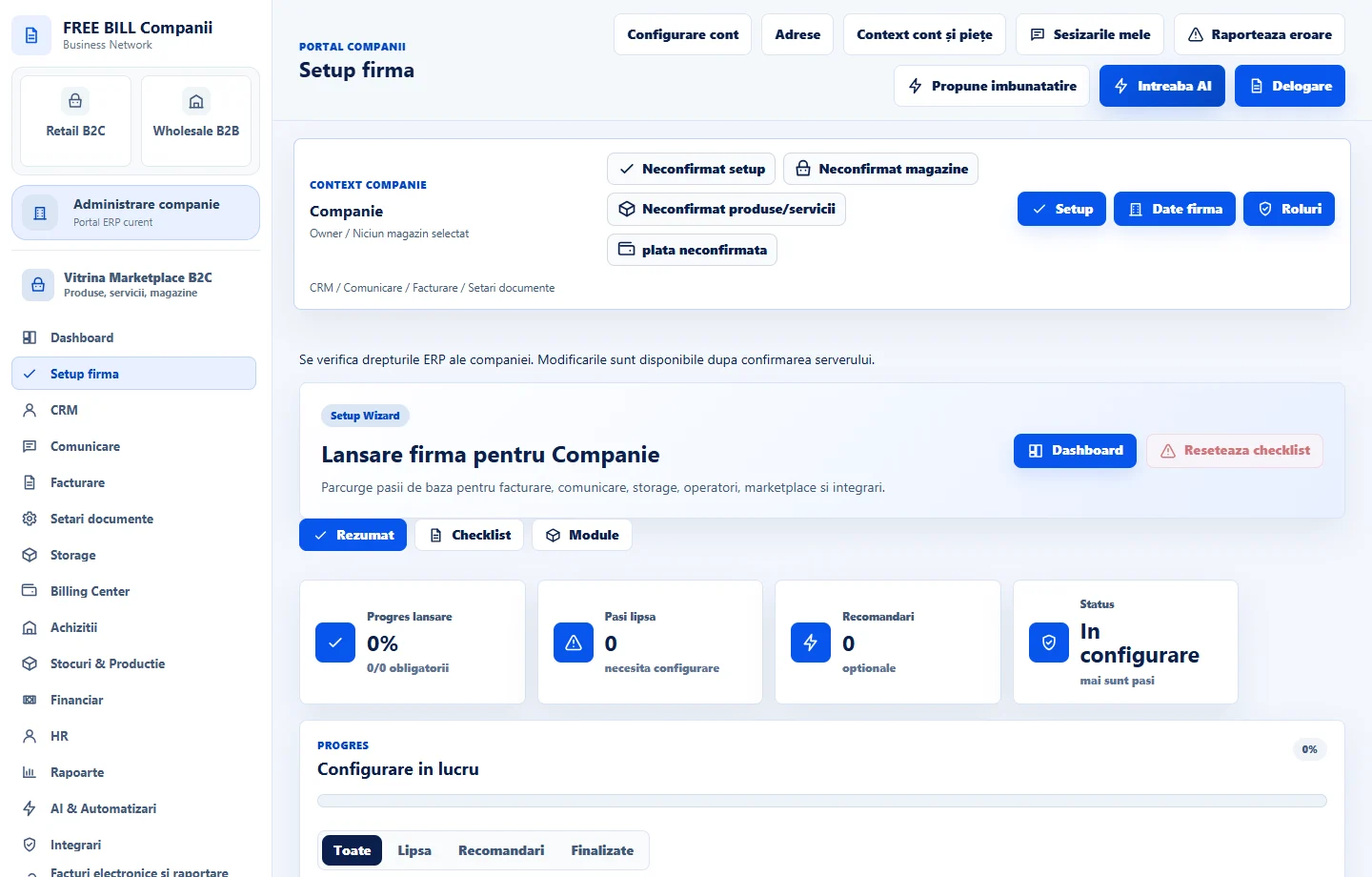
In «Rezumat», review the completed and remaining steps. Use «Finalizează ghidul» when available. To pause, select «Salvează și continuă mai târziu» and return under the same account and company.
Application interface · Romanian · 2
Check the result
Saved details and settings appear in the company context. You can open the remaining configuration areas from the dashboard.
If something is missing
If a control is disabled, check the active company, required fields and the operator's permissions. Reopen «Configurare cont» to resume from your saved progress.
Availability depends on your role, enabled modules, country and company configuration.
Open in FreeBill Conect