Set up addresses and verify the company's market
Select the right address for the operation and check which country, currency and entity the active account uses.
Before you begin
- The correct company selected in the company portal.
- Full addresses and the country of registration for the entity you are setting up.
- Who it is for
- Company account owner or operator with access to the profile and addresses.
- Where to find it
- Dashboard
Step by step
Check the active company
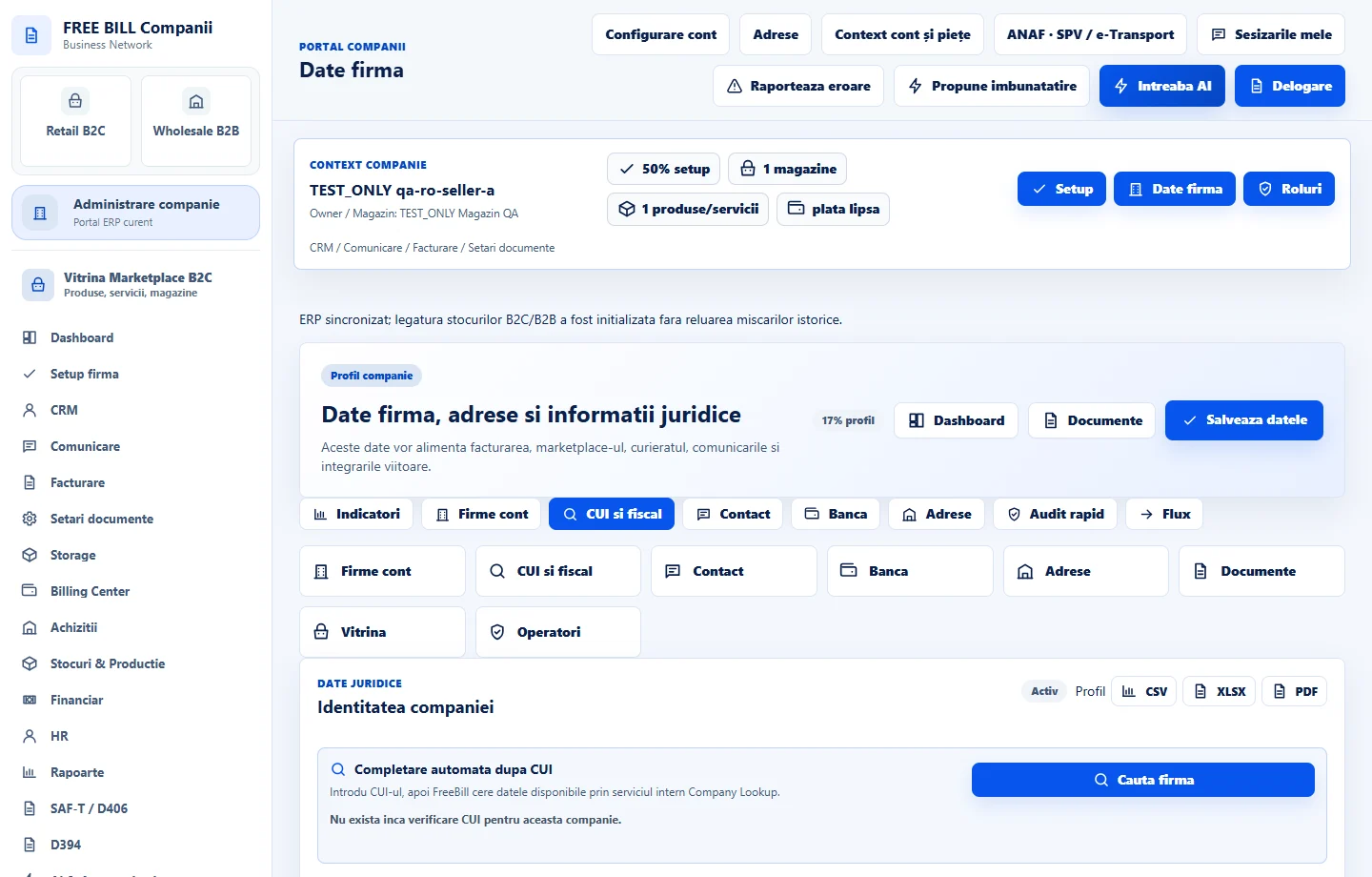
On the dashboard, find «Context companie». If you work with several companies, use the company selector before opening the address book.
Add or edit an address
Open «Adrese» in the header, choose the address type and enter the country, locality, postcode and address lines. If the form asks for a county or subdivision, use the options for the selected country.
Check what each address is used for
Review the registered office, billing address and delivery destination. Use the corresponding address when issuing a document or preparing an order.
Check the regional settings
Open «Context cont și piețe». Check the selected entity and market, the language preference and the displayed currency. Before a commercial operation, check availability for that market and operation.
Verify the address where it will be used
Open a draft invoice or order and check which address the form uses. Correct the profile or selection before issuing the document or dispatching the order.
Check the result
Saved addresses can be selected within the company context. The market and displayed settings are available to check before an operation.
If something is missing
If the locality is missing, check the country and county. If a document uses a different address, check the selection on the form and the active company.
Availability depends on your role, enabled modules, country and company configuration.
Open in FreeBill Conect