Manage operator access for each company
Create an internal account, grant the appropriate permissions, verify access and manage suspension.
Before you begin
- The correct company selected and administration permissions confirmed by the server.
- The person's name, username and the access their work requires.
- Who it is for
- Company owner or operator with administration permissions.
- Where to find it
- Administrare
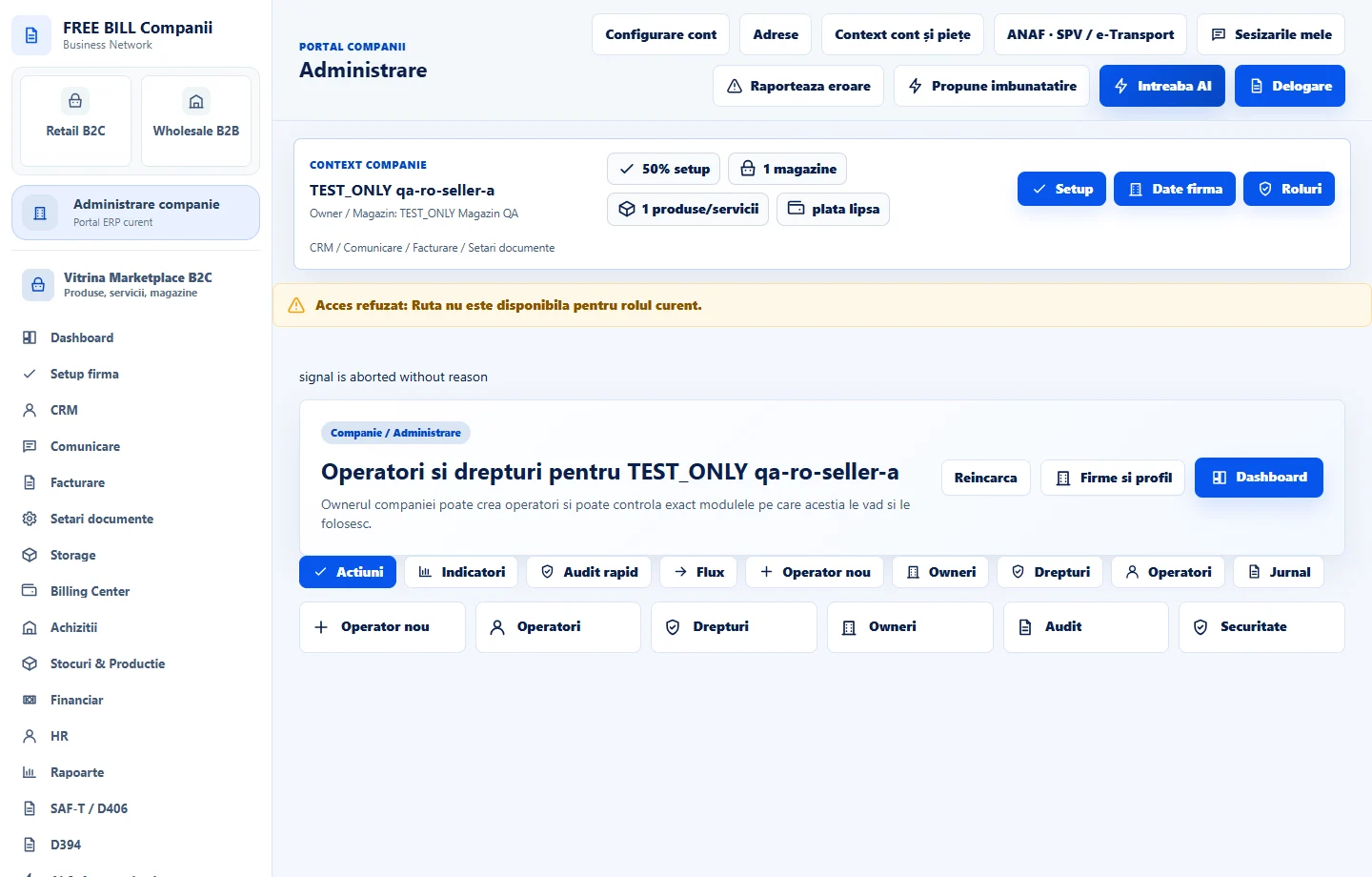
Step by step
Open «Roluri» for the active company
Under «Context companie», select «Roluri» or open «Administrare». Check the company name in the «Operatori și drepturi pentru» heading before changing an account.
Complete the internal account details
In «Operator nou», enter the display name, username and other details required by the form. Check the email address or telephone number if you use them for this account.
Grant access by module
Choose permissions based on the person's duties. An operator who consults data needs read access. To record operations they also need the relevant write permission. Review the permissions guide next to the form.
Save and verify access
Save the operator, reload the register and open the account row to check the company, status and permitted modules. With the assigned operator, verify access to one allowed module and one that should remain restricted.
Update or suspend the account
When duties change, edit permissions from the operator's row. To stop access, use the available suspension or blocking action and review the administration log.
Check the result
The operator appears in the company's register with the selected status and permissions. The administration log records changes for review.
If something is missing
If the creation panel is missing, select «Reîncarcă» to refresh the server check and ask the company owner to verify your administration permission. Confirm which company the account belongs to before changing its rights.
Availability depends on your role, enabled modules, country and company configuration.
Open in FreeBill Conect