Change your password, configure MFA and review sessions
Manage your account security and close a session you no longer use.
Before you begin
- Access to the account and your current password.
- An authenticator app if you want to enable two-step verification.
- Who it is for
- The authenticated user of that account.
- Where to find it
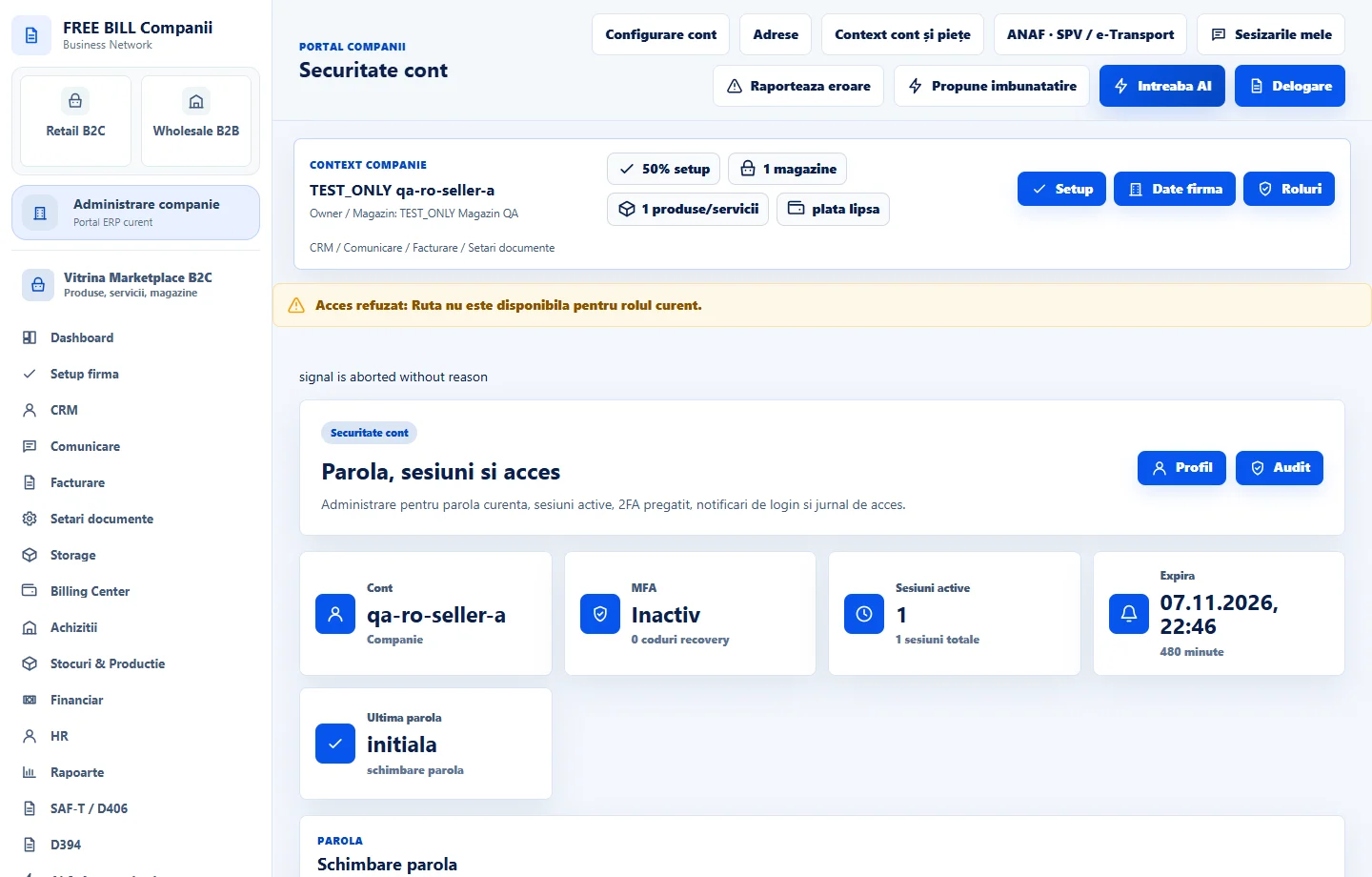
- Securitate cont
Step by step
Open «Securitate cont»
Open «Securitate cont» in FreeBill Conect and review the session summary, MFA status and security alerts.
Change your password
Enter your current password, new password and confirmation. Select «Schimbă parola» and check the server message. Use the new password the next time you sign in.
Enable two-step verification
Under «Autentificare cu doi pași», follow the instructions to connect your authenticator app and confirm with its code. Store your recovery codes privately.
Review your sessions
Review the date and available information for each session. Revoke a session you want to close. That session will require a new sign-in to regain access.
Replace the MFA device when needed
If you need to change authenticators, review «Regenerează cheia MFA». Enter your password and the required code, then confirm the new setup as shown on the panel.
Check the result
The MFA status and active sessions reflect the confirmed settings for your account.
If something is missing
If a code is rejected, check the device time and use a current code or an available recovery code. For a forgotten password, use the recovery option on the sign-in page when available for your account.
Availability depends on your role, enabled modules, country and company configuration.
Open in FreeBill Conect