Reconcile, correct and export financial transactions
Use supporting documents to reconcile entries, record a confirmed refund and export the dataset you need.
Before you begin
- The company, account, date, currency and supporting reference have been checked.
- For a refund, proof of the payment to the customer and an eligible invoice with a sufficient net amount collected.
- Who it is for
- Operator with write permissions in finance and access to the source documents.
- Where to find it
- Financiar
Step by step
Find the unreconciled transaction
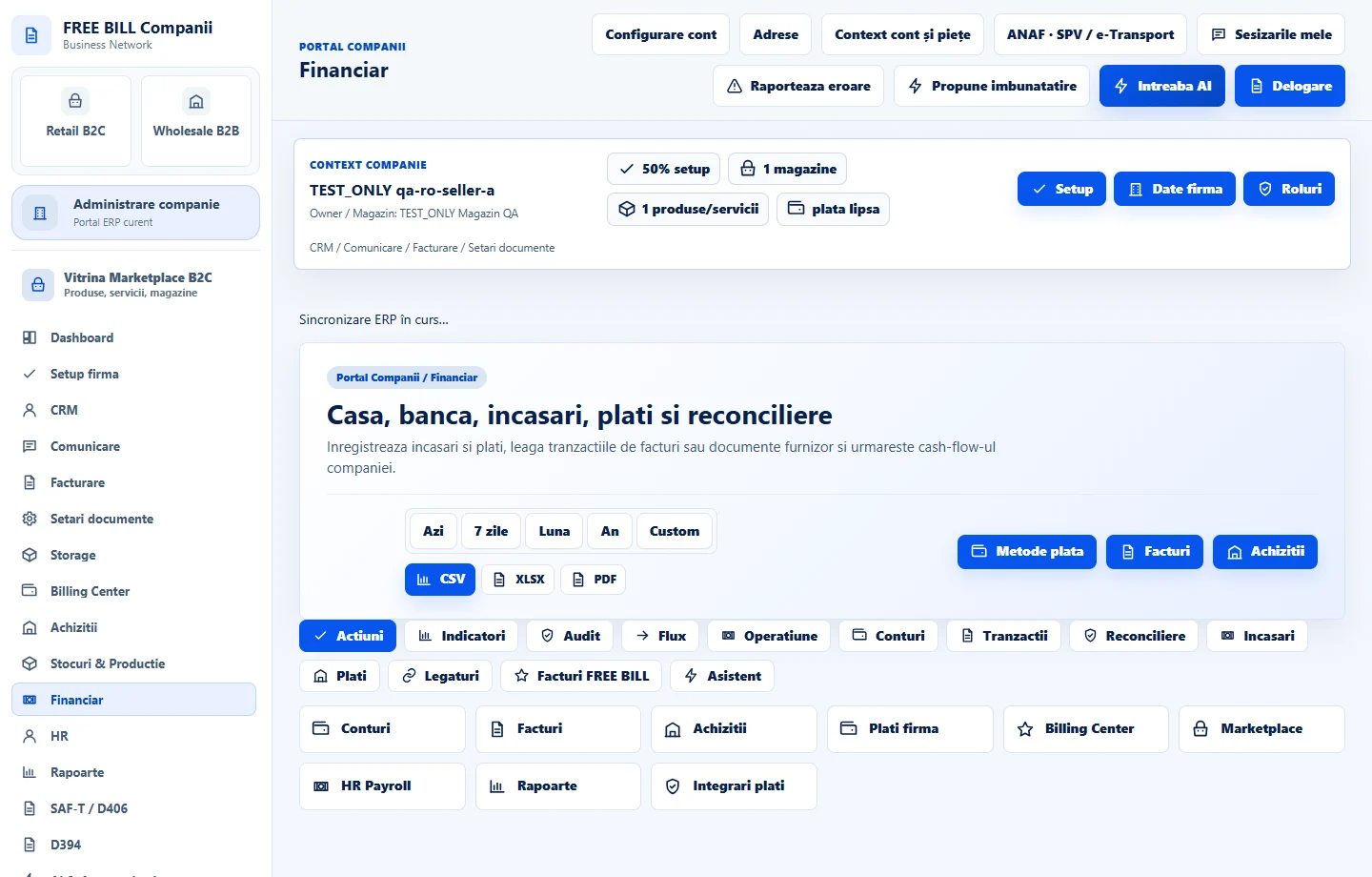
In «Financiar», choose the correct period. Open «Nereconciliate» or «Tranzacții financiare» and compare the reference, account, date, currency and amount with the statement or supporting document.
Reconcile or reopen the review
Select «Reconciliază manual» for an eligible entry with a verified supporting reference. Use «Redeschide» if a previous reconciliation needs review, then check the row status in the register.
Cancel an incorrect accounting entry
For an eligible manual entry, select «Anulează» and review the server message. This action cancels the accounting entry. To move funds or refund the customer, perform the operation through the appropriate payment channel and verify the evidence.
Record a refund already made
In «Încasare sau plată nouă», select «Rambursare client», the account and the eligible invoice. Enter the confirmed amount up to the net amount collected on that invoice, and its reference. For payment managed through an order or online provider, check the source workflow and any existing entry first.
Export the required section and period
Select «CSV», «XLSX» or «PDF» in the relevant section. Review transactions, receipts, payments, unreconciled items or open documents separately, then check the period and currency in the exported file.
Application interface · Romanian · 3
Check the result
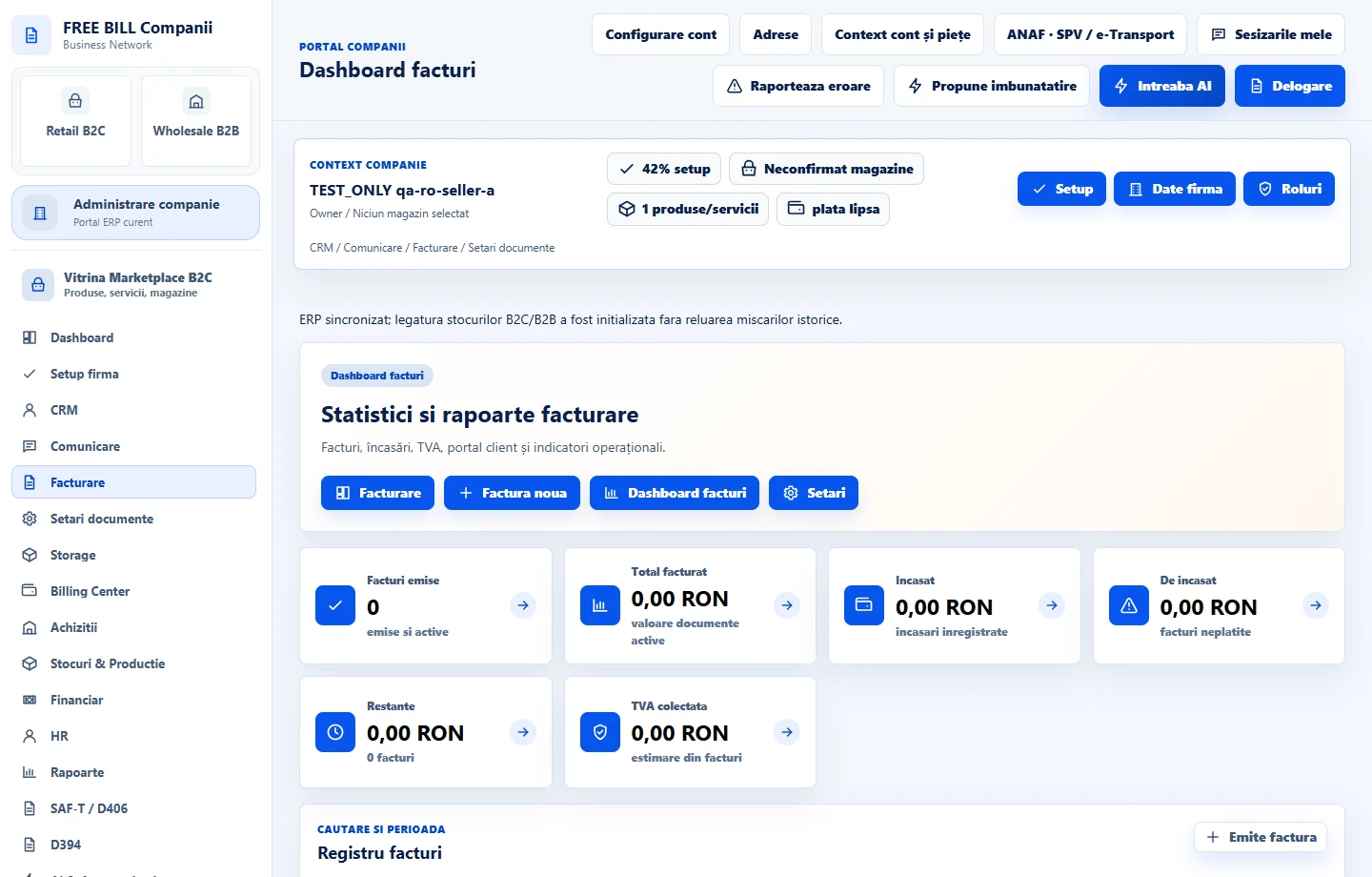
The register shows the updated transaction status, and the export contains the selected dataset from the active company.
If something is missing
If a manual action is missing, check whether the transaction is managed by a provider or order. If cancellation would leave refunds without corresponding receipts or create an overpayment, check the dependent entries first.
Availability depends on your role, enabled modules, country and company configuration.
Open in FreeBill Conect