Add and verify your company's AI API key
Configure a provider and an API model for Ask AI. Each company manages the keys it uses.
Before you begin
- An API key issued to the company by the AI provider.
- The exact model identifier and active API access from the provider.
- Who it is for
- Company administrator or operator permitted to manage AI keys.
- Where to find it
- AI & Automatizari
Step by step
Open «Chei AI»
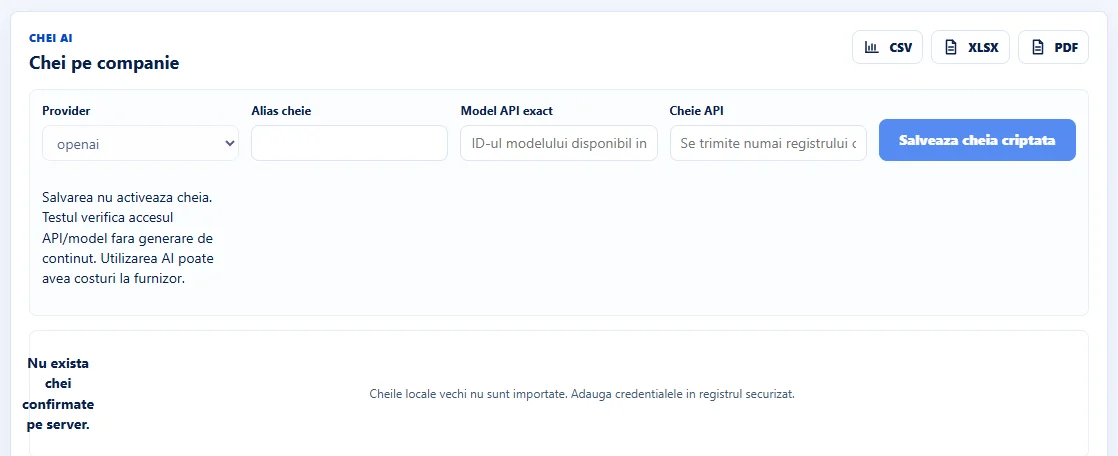
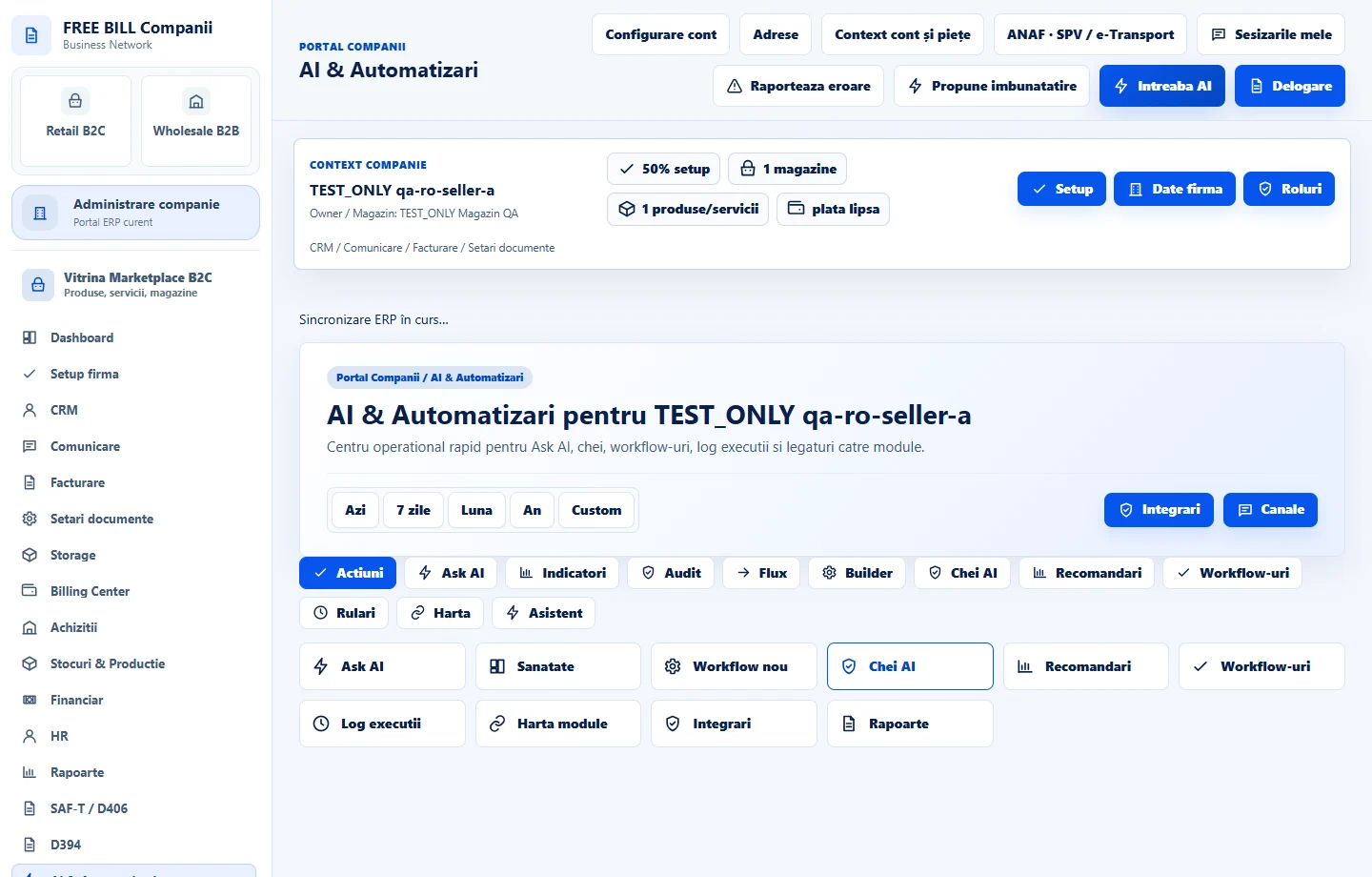
In the correct company, go to «AI & Automatizări» → «Chei AI». Check the «Chei pe companie» panel.
Enter the provider, alias and model
Under «Provider», select OpenAI, Gemini, Anthropic, DeepSeek or OpenRouter, according to your account. Choose a recognisable alias and enter the exact supported identifier in «Model API exact».
Save the encrypted key
Enter the value in «Cheie API» and select «Salvează cheia criptată». Use the dedicated key field and check that your alias appears in the list.
Test the model and activate the key
On the key's row, select «Testează API/model». After the test passes, select «Activează». When several keys are active, the aliases help you select the right one in «Întreabă AI».
Manage a replaced key
From the row actions, you can disable, replace or revoke the key as needed. After replacing it, test the new key and model before using them in new requests.
Application interface · Romanian · 2
Check the result
The verified and activated key becomes available for AI requests in the company that configured it.
If something is missing
If the test fails, check the provider, exact model, API permissions and account credit. If «Activează» is disabled, check whether the key passed its test.
Availability depends on your role, enabled modules, country and company configuration.
Open in FreeBill Conect