Assign a CRM follow-up task
Give a commercial action an owner, priority and deadline.
Before you begin
- CRM edit permission.
- Who it is for
- company user with module permission
- Where to find it
- Task-uri CRM
Step by step
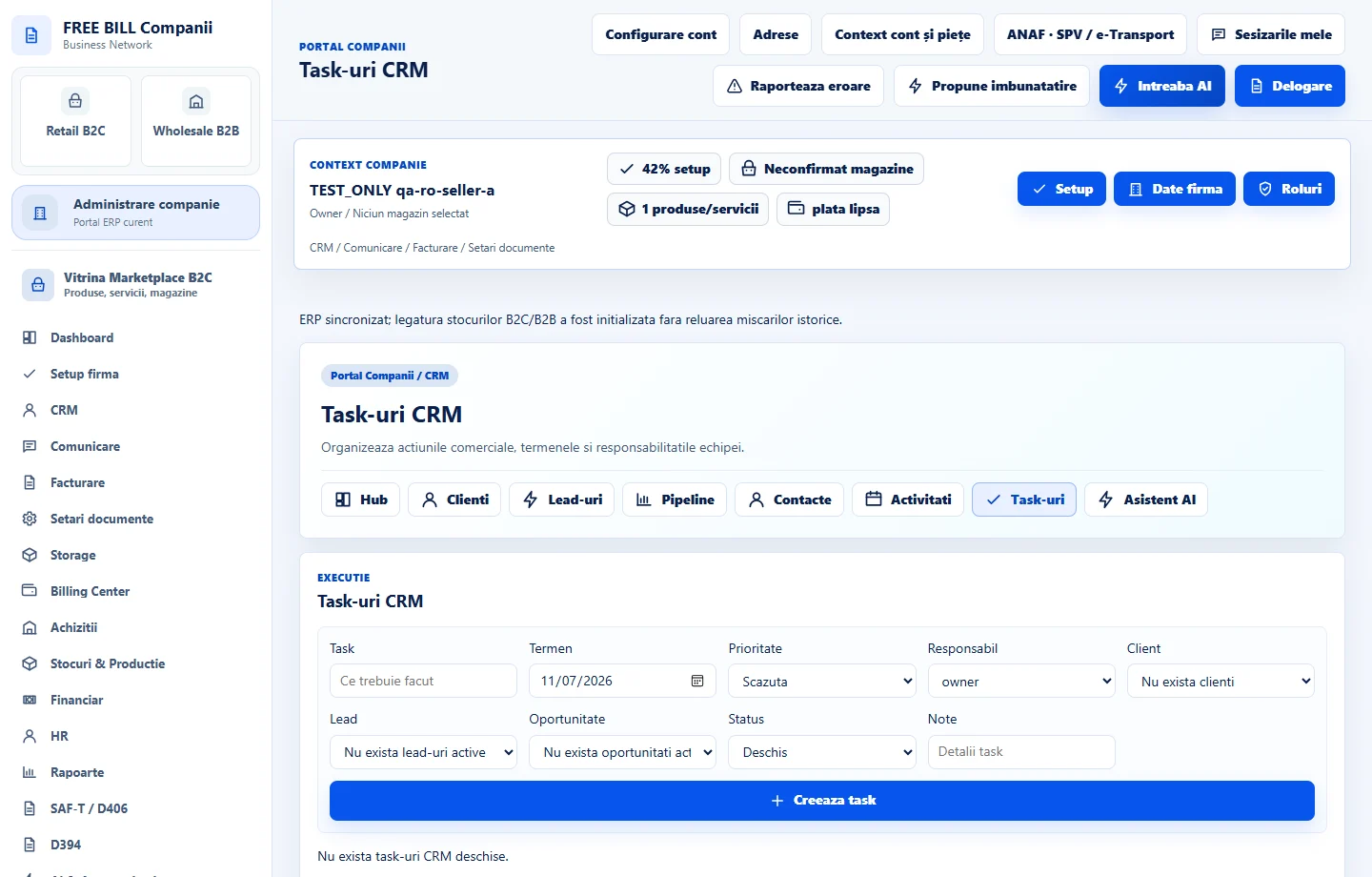
Open Task-uri CRM
Select the relevant company or account, then open «Task-uri CRM».
Describe the task
Fill «Task» and choose «Termen» and «Prioritate».
Assign and link it
Select the responsible user and the customer, lead or opportunity; add notes.
Create the task
Select «Creeaza task».
Check the task list
Confirm the deadline, owner and status in the CRM task register.
Check the result
An assigned follow-up task with a visible due date.
If something is missing
If editing is disabled, check the active company and your permission for this module. Resolve the validation message shown in the form before submitting again.
Availability depends on your role, enabled modules, country and company configuration.
Open in FreeBill Conect