Add a customer contact
Link a named contact and communication details to a CRM customer.
Before you begin
- CRM edit permission and at least one customer.
- Who it is for
- company user with module permission
- Where to find it
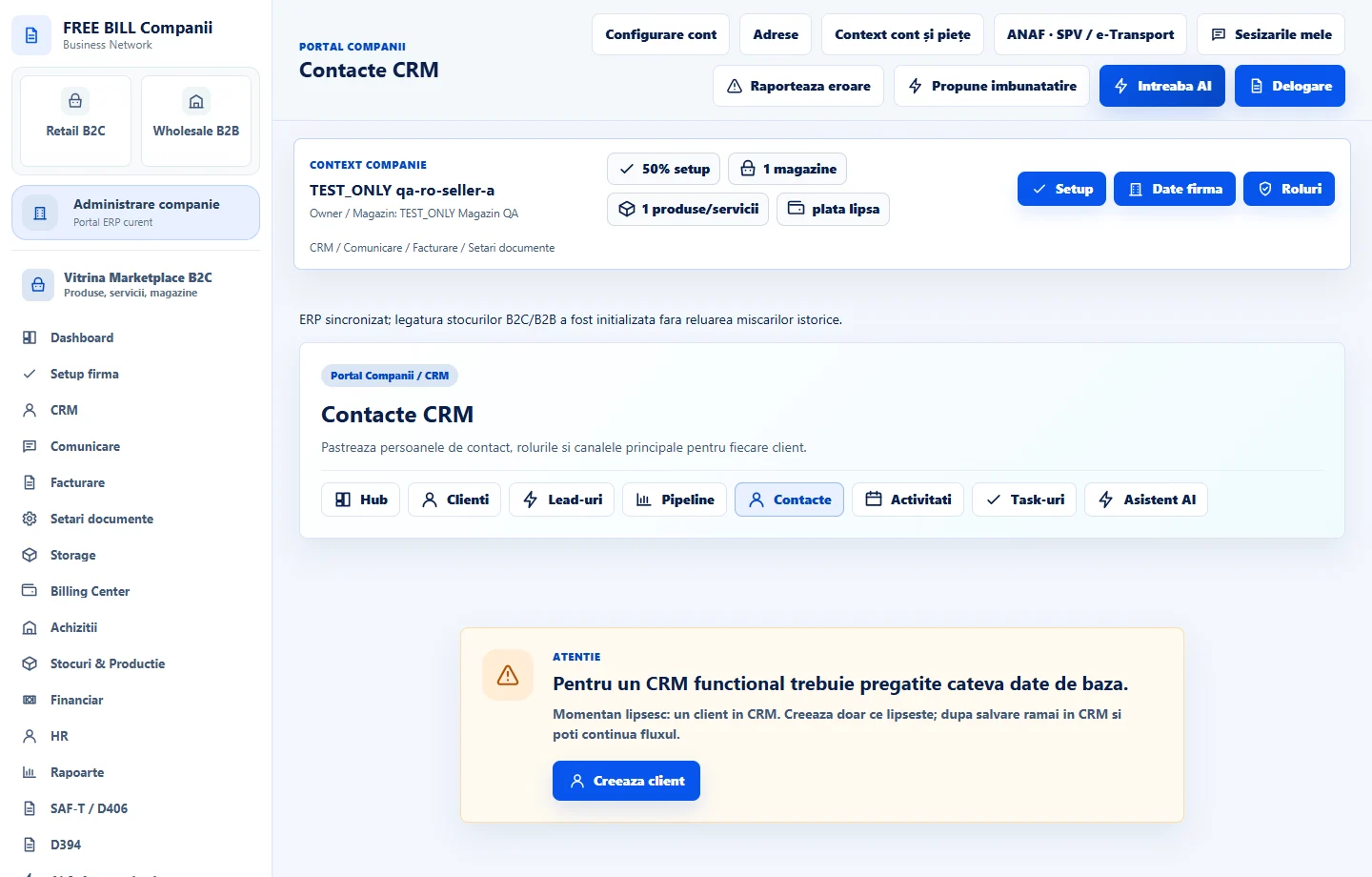
- Contacte CRM
Step by step
Open Contacte CRM
Select the relevant company or account, then open «Contacte CRM».
Select the customer
Choose the existing customer in the «Client» field.
Complete the contact
Enter «Nume contact», role, email and phone; use «Principal» for the primary contact flag.
Save the person
Select «Adauga contact».
Confirm the relationship
Check the contact in the table and use activities to schedule follow-up.
Check the result
A contact connected to the selected customer.
If something is missing
If editing is disabled, check the active company and your permission for this module. Resolve the validation message shown in the form before submitting again.
Availability depends on your role, enabled modules, country and company configuration.
Open in FreeBill Conect