Close a physical inventory count
Record the observed quantity for an item and location.
Before you begin
- Inventory edit permission and a completed physical count.
- Who it is for
- company user with module permission
- Where to find it
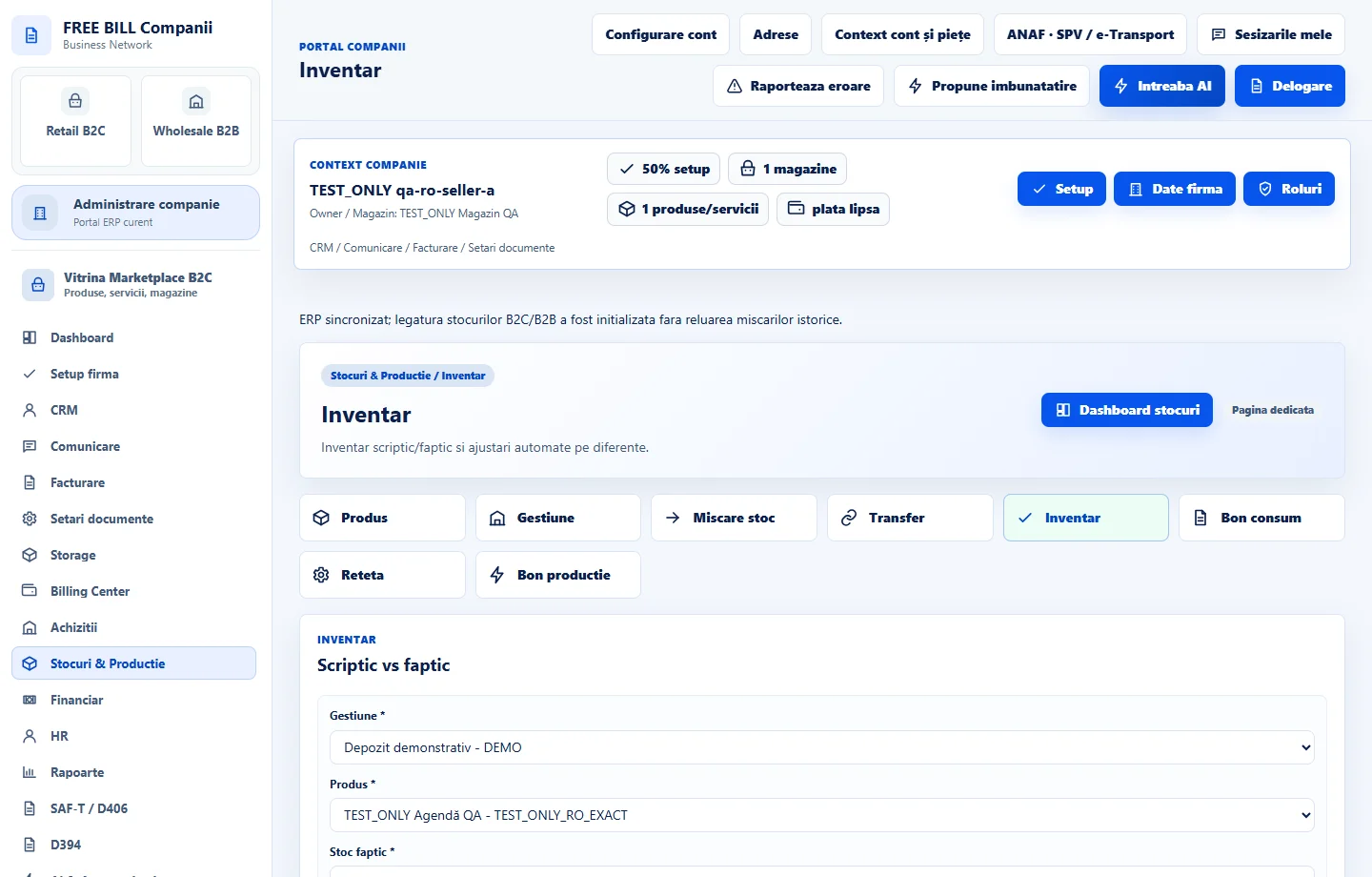
- Inventar
Step by step
Open Inventar
Select the relevant company or account, then open «Inventar».
Select the counted position
Choose the warehouse and product.
Enter the count
Enter the physically counted quantity, count date and explanatory note.
Close the inventory
Select «Inchide inventar» after checking the quantity.
Review the difference
Inspect the result in «Inventare inchise» and the stock adjustment information.
Check the result
A closed count with the observed quantity and difference recorded.
If something is missing
If editing is disabled, check the active company and your permission for this module. Resolve the validation message shown in the form before submitting again.
Availability depends on your role, enabled modules, country and company configuration.
Open in FreeBill Conect